Verdict
NordPass is a strong choice if you want a simple and secure password manager that covers all the essentials without feeling complicated. It has solid security tools and smooth cross-device syncing. However, it may feel limited to advanced users due to fewer customization options and a more restricted free plan than some competitors.
Pros and Cons
- Easy to use with a simple interface
- Strong security tools like password storage, autofill, passkeys, breach monitoring, password health checks, sharing, and emergency access
- Syncs smoothly across devices and browsers
- Uses zero-knowledge encryption, so only you can access your data
- The free plan lets you store unlimited passwords
- Fewer advanced features compared to some competitors
- The free plan only works on one device at a time
- Less flexible in some workflows
What is NordPass?
Indulge in online safety

I used to be one of those people who had essentially the same password for basically all of my accounts. Netflix, email, you name it. Not a great look.
But with the unwanted rise of data breaches (a new record was set in 2025), passwords alone aren’t enough anymore. Learning about this was when I finally started taking password management seriously. And for your own safety and peace of mind, you should too.
That’s when I stumbled upon NordPass, and I haven’t looked back since.
NordPass is a password manager built by Nord Security, the same company behind NordVPN. If you’ve heard of NordVPN, then you already know these guys aren’t messing around when it comes to online security.
Nord Security has built a pretty solid reputation over the years, and NordPass fits right into their ecosystem alongside tools like NordLocker (for encrypted file storage) and NordLayer (their business network security solution). They’re basically trying to be a one-stop shop for digital security, and NordPass is their answer to the password problem.
NordPass securely stores passwords, passkeys, and other sensitive information in an encrypted vault, then autofills them when needed. For encryption, it uses XChaCha20, a more modern algorithm designed for strong security and performance.
It also uses a zero-knowledge security model, so NordPass can’t view your stored data. And for even more security, it’s got a password generator, secure notes, and support for personal and business use.
Supported Platforms
On the platform side, NordPass has you pretty well covered. It runs on Windows, macOS, and Linux. There are also native apps for iOS and Android, so your passwords sync across your phone and desktop without any weird workarounds.
The browser extensions (available for Chrome, Firefox, Edge, Safari, Opera, and Brave) are where you’ll use it most day to day. They autofill credentials so smoothly that after a while, you forget you’re even using a password manager.
One thing I’ll say is that NordPass isn’t the most feature-packed password manager on the market, but it covers the essentials very well. If you’re coming from something like 1Password or Bitwarden, the interface may feel a bit simpler.
But for most people, simple is better. You don’t need a dashboard that looks like Mission Control just to manage your passwords. NordPass hits that sweet spot between powerful enough to protect you and approachable enough that you’ll actually use it every day.
At the end of the day, the best password manager is the one you actually stick with.
Who is NordPass Best For?
NordPass suits a wide range of people:
- Personal users can use NordPass as a simple way to stop reusing passwords and start generating strong, unique ones automatically.
- Families can use NordPass to share login credentials with a spouse or kids (e.g., streaming services or shared bank portals) instead of texting passwords between each other.
- Small and medium-sized businesses can use NordPass for user provisioning, activity logs, and centralized admin controls.
- Enterprise teams can use NordPass for single sign-on (SSO) integration and account management for security infrastructure.
- IT managers can use NordPass to manage users, groups, and permissions, enforce strong password rules, control sharing, and monitor activity logs.
NordPass Key Features
NordPass key features include
- Password storage and autofill: Stores an unlimited number of login credentials in an encrypted vault and autofills them on websites and apps.
- Passkey support: Store, manage, and share passkeys alongside passwords.
- Credit card and personal information storage: Saves payment details and personal information for faster checkout and form filling.
- Data Breach Scanner: Sends alerts if your data appears in a breach and helps you respond quickly.
- Password Health Checks: Flags weak, old, or reused passwords so you can improve them.
- Password Generator: Creates strong, random passwords with customizable settings.
- Sharing Hub: Share passwords safely with trusted people.
- Device Synchronization: Syncs your vault across devices and browsers so you can access it anywhere.
- Zero-knowledge encryption: Encrypts data on your device so NordPass itself can’t read your vault.
- Group Management: Create and manage user groups and control access to shared folders, passwords, and other sensitive resources across your organization.
- Authenticator: Automatically generate and autofill two-factor authentication (2FA) codes for both business and personal accounts.
- Email Masking: Create unique email masks to protect your personal and business accounts from data exposure.
- Password Policy: Set password rules for your team, like how long passwords need to be and how often they should be updated.
- Activity Log: Get detailed insights into password usage and sharing activity in your organization.
- Integrations: Integrates with Vanta and Splunk so you can connect your password management with the security systems you already use.
How to Use NordPass
Getting started with NordPass
Here’s how to set up and start using NordPass:
- Sign Up for NordPass
- Create a Master Password
- Configure Enterprise Policies
- Create a Password Policy
- Manage the Share Settings
- Adjust the Authentication Methods
- Invite Members
- Create Groups
- Resolve Breaches
- View the Activity Log
- Save & Share Credentials
Step 1: Sign Up for NordPass
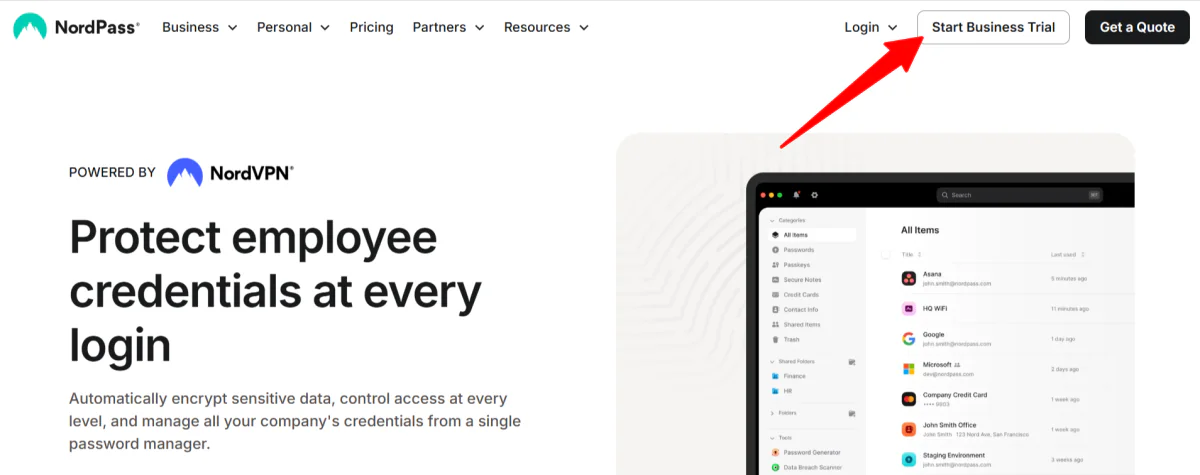
I started by going to nordpass.com and selecting Start Business Trial (NordPass offers a 14-day free trial with no credit card required).
Step 2: Create a Master Password
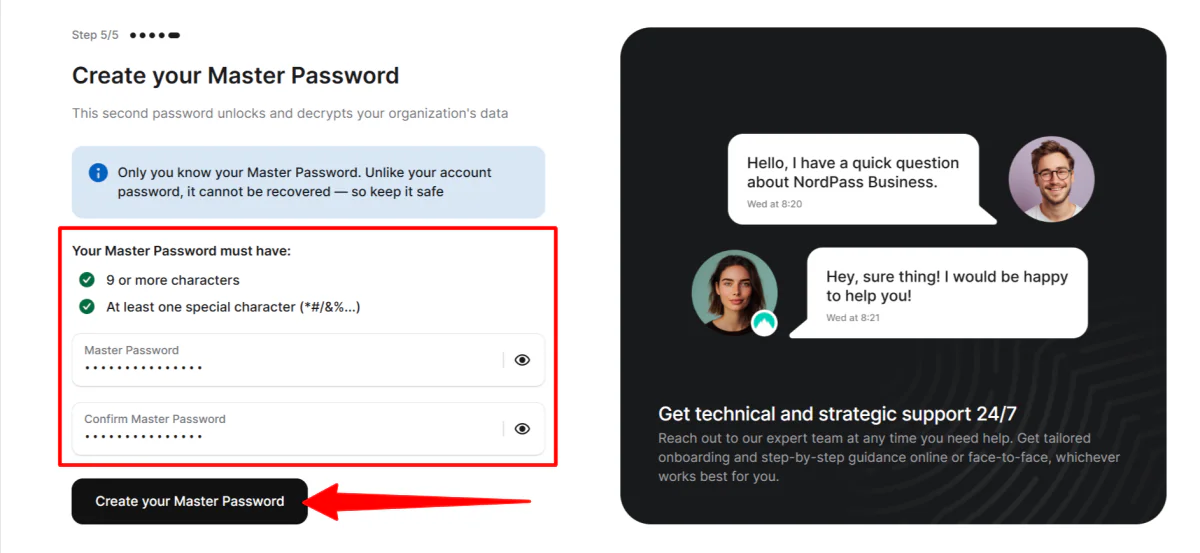
During account creation, NordPass requires two layers of defense:
- An account password
- A Master Password
While your account password gets you through the front door, the Master Password is the cryptographic key that decrypts your organization’s data.
NordPass operates on a zero-knowledge architecture. This means your Master Password cannot be recovered by their support team if you lose it.
Treat your Recovery Code like liquid gold. Store it on an encrypted drive or an offline, physical backup. I made sure mine was strong, unique, and not reused anywhere else, so it would be much harder to guess or compromise.
Step 3: Configure Enterprise Policies
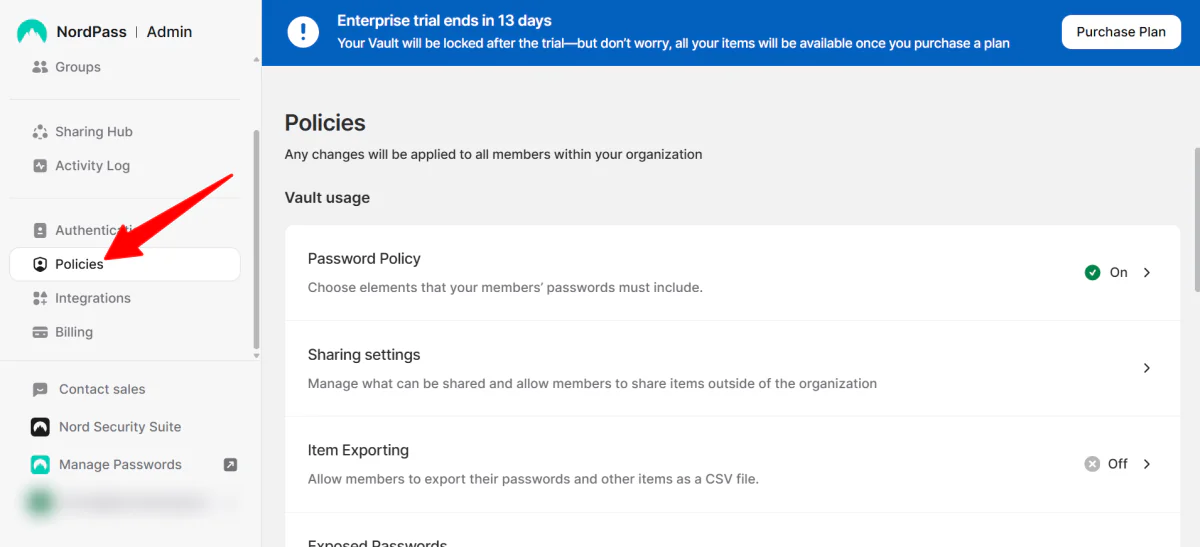
Once inside the dashboard, your first move shouldn’t be inviting team members. It should be tightening your security settings under the Policies tab.
Step 4: Create a Password Policy
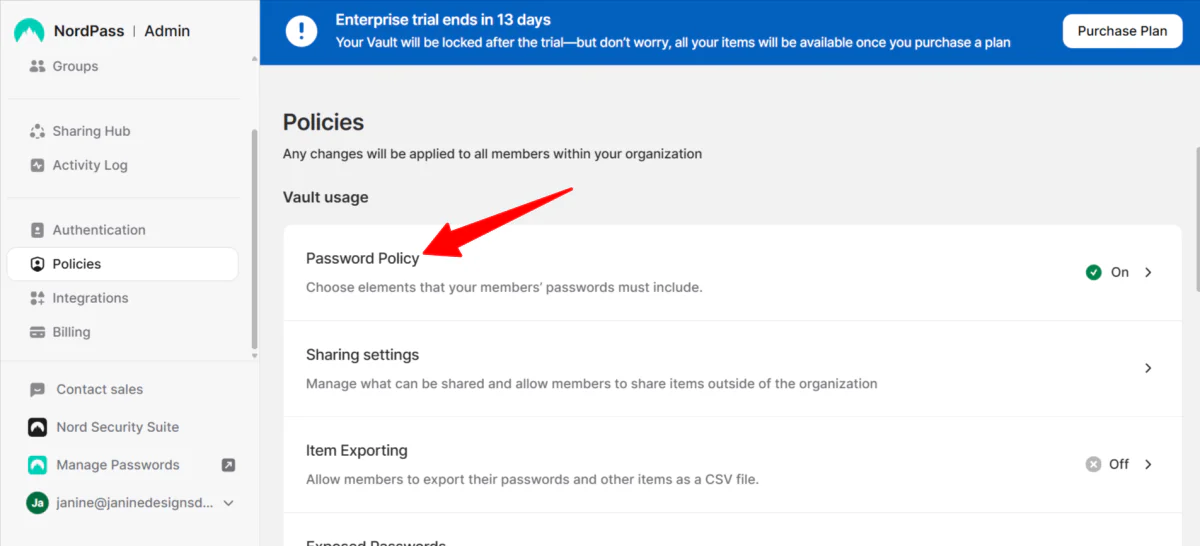
Starting with the Password Policy, set aggressive baseline rules for minimum length and complexity.
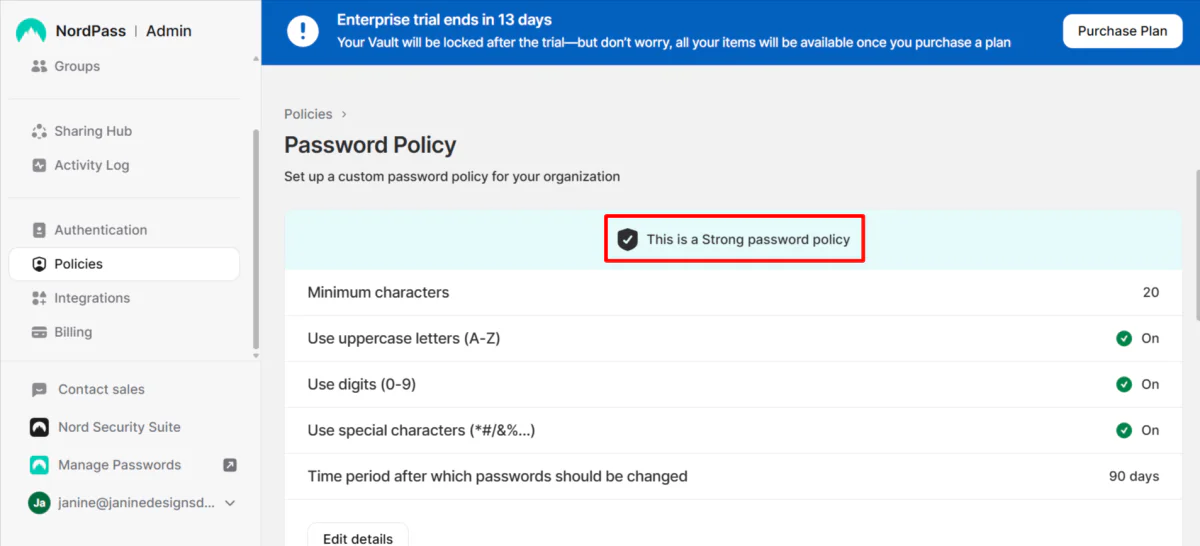
Human-made passwords (like Password123) can be cracked in milliseconds. NordPass forces your team to generate strong, hard-to-guess passwords instead.
Step 5: Manage the Share Settings
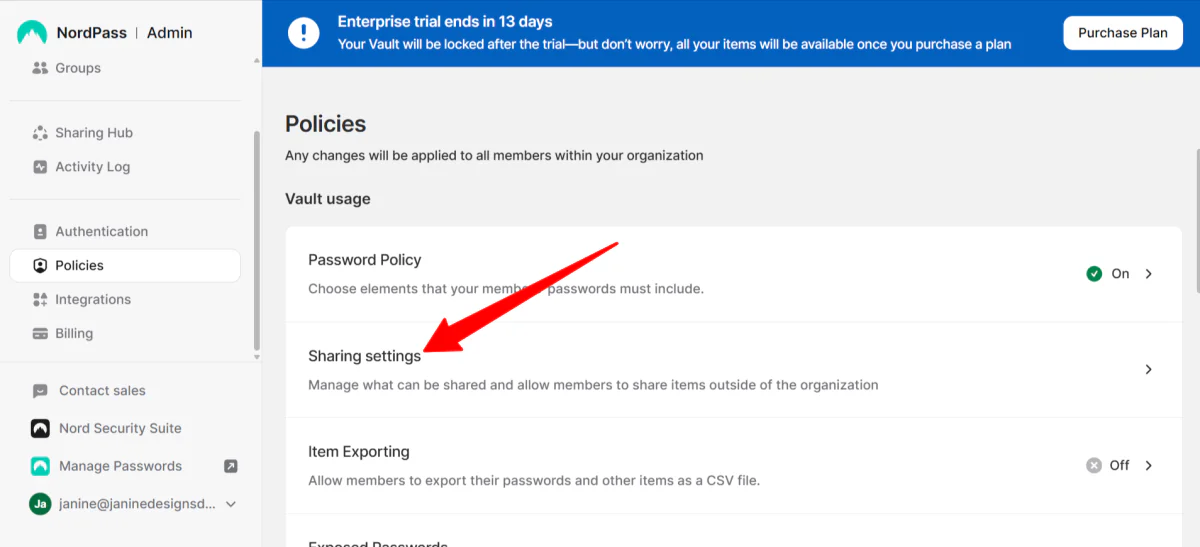
Within “Policies,” the “Share settings” section is another important area to review.
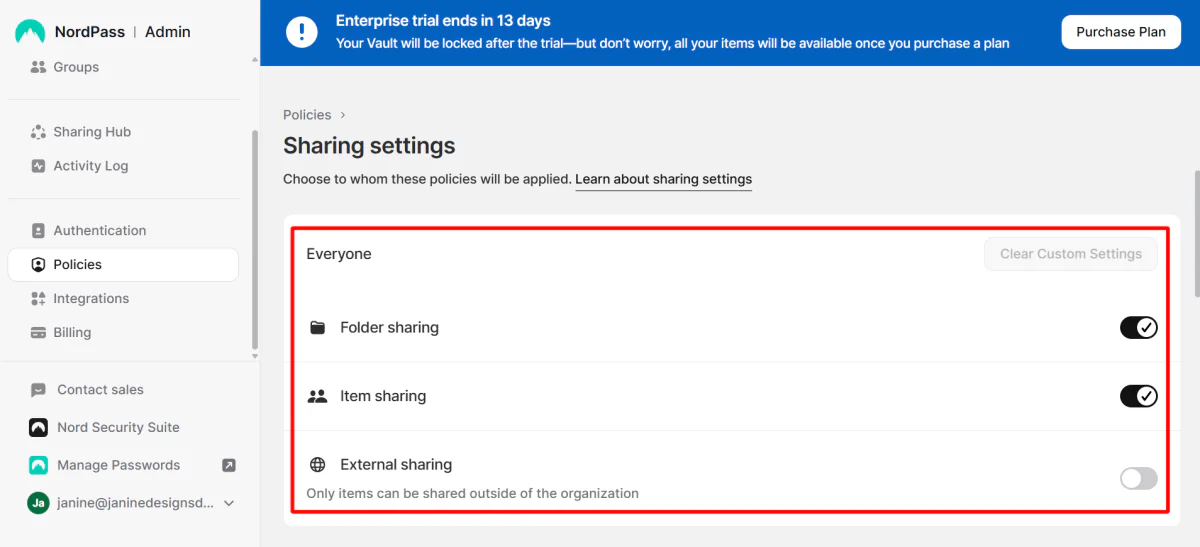
Here, you can control what types of items can be shared and decide whether team members are allowed to share data outside the organization.
Step 6: Adjust the Authentication Methods
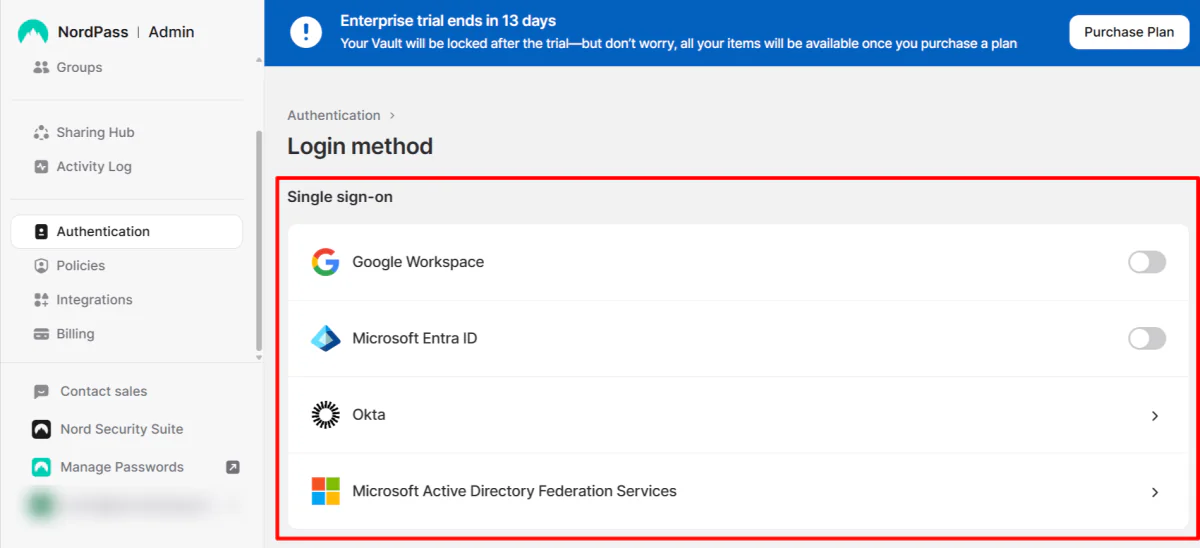
Under the Login method, enforce Single Sign-On (SSO) if your company uses it.
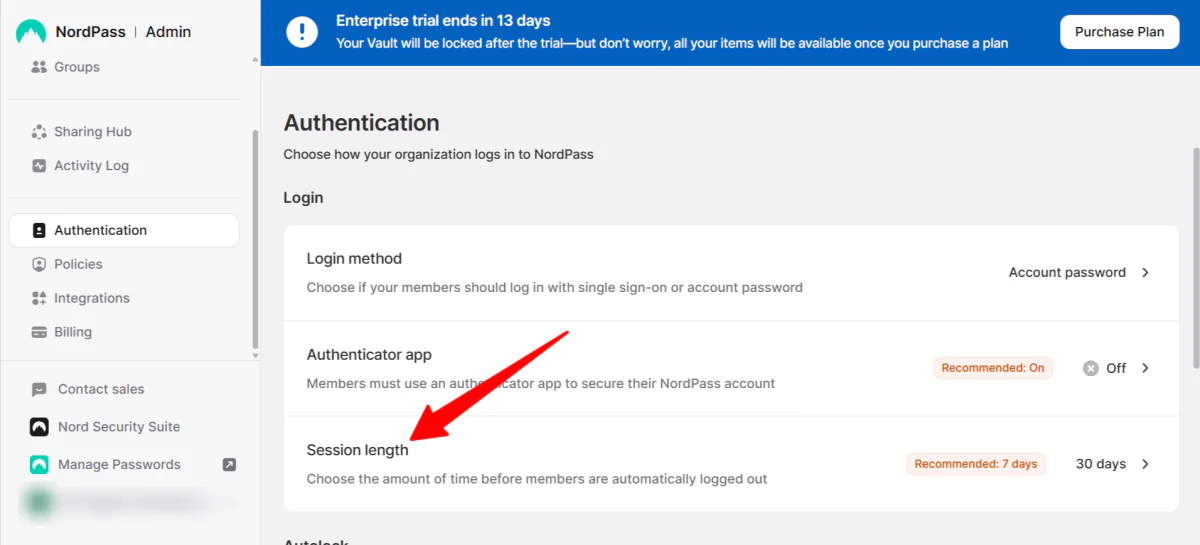
More importantly, adjust the session length.
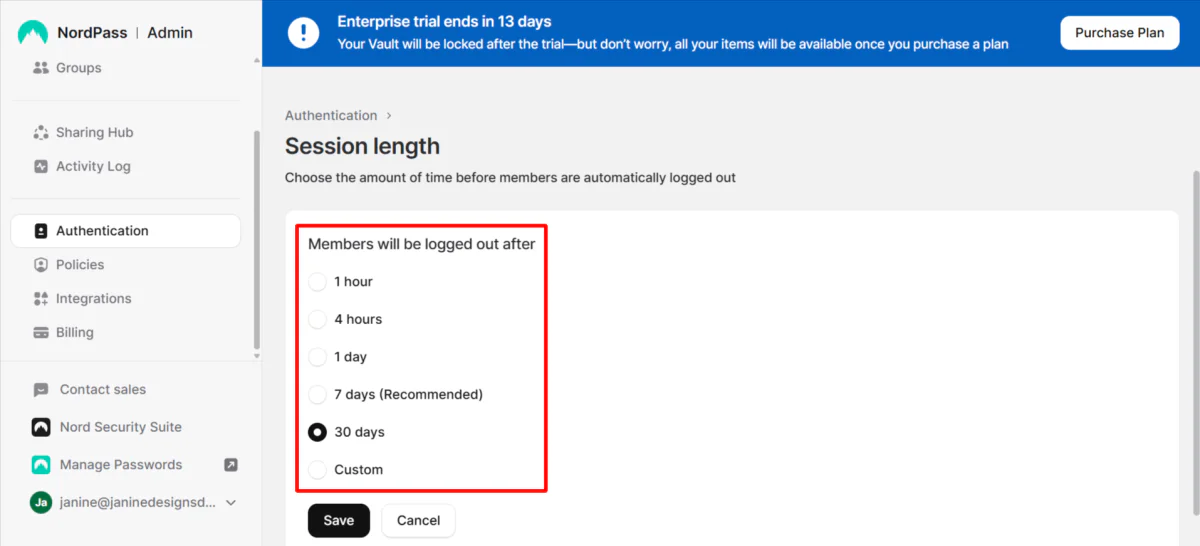
Setting this to expire after 4 hours (instead of the default 30 days) ensures that if an employee’s device is left unattended, it won’t remain an open gateway for unauthorized data extraction.
Step 7: Invite Members
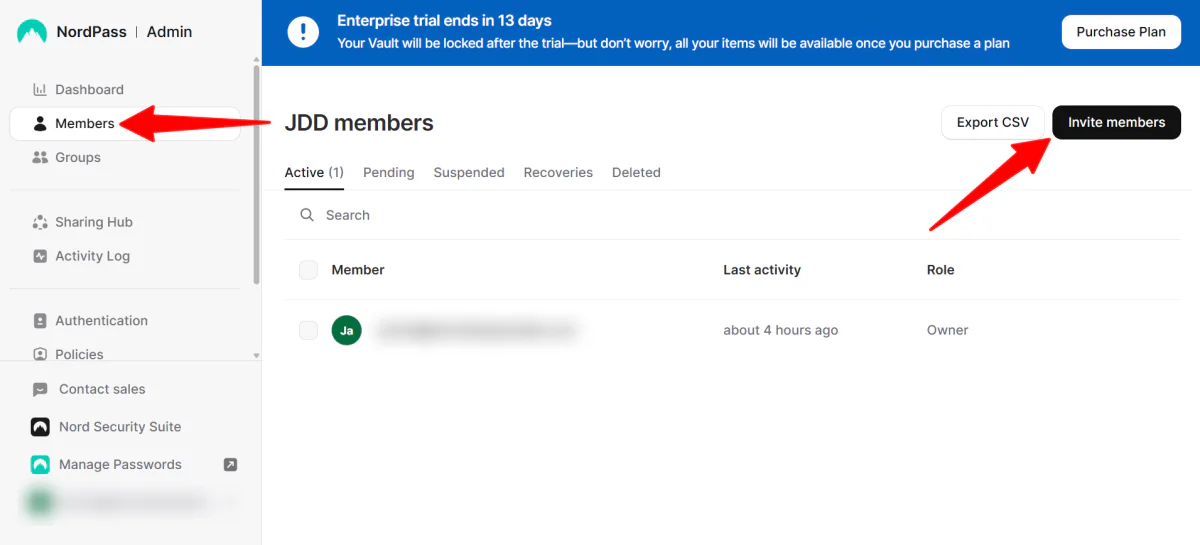
With your security perimeter established, you can invite your workforce via the Members tab.
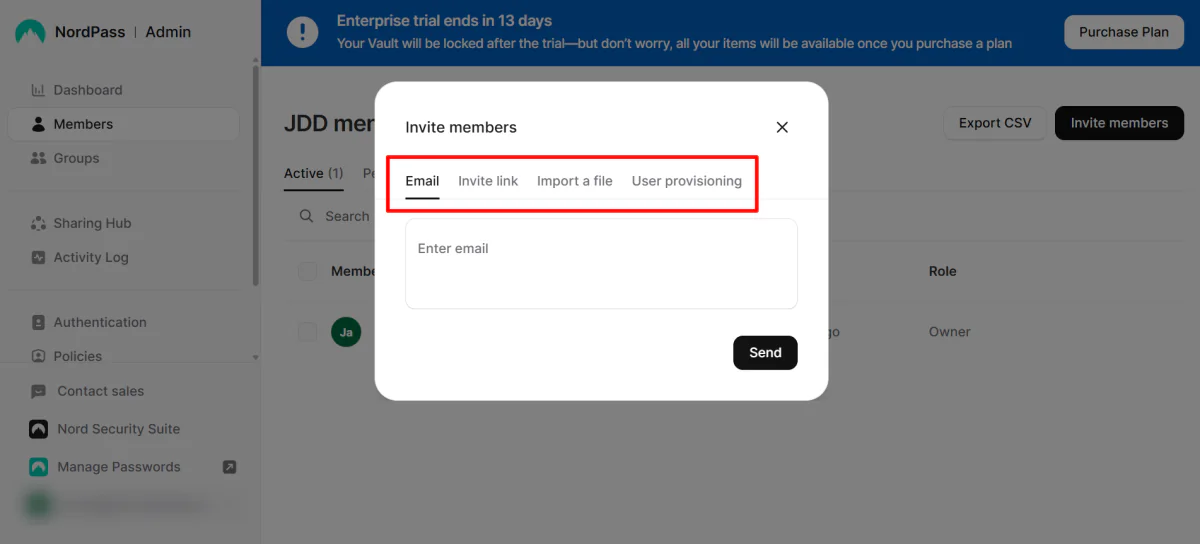
NordPass provides four ways to onboard, but for teams already using Microsoft Entra ID or Okta, the User Provisioning method is by far the most efficient.
Step 8: Create Groups
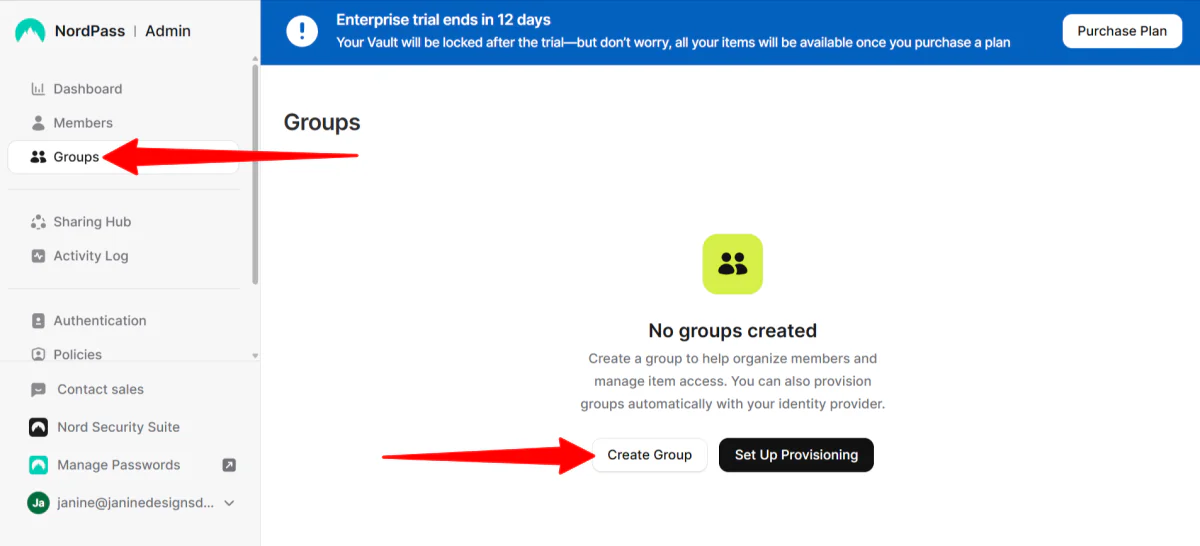
To keep things organized, don’t share passwords individually.
Use the Groups feature to bucket users by role (e.g., “Marketing Team” or “Dev Ops”). This lets you quickly grant or remove access to all the tools and accounts a team uses with a single click.
Step 9: Resolve Breaches
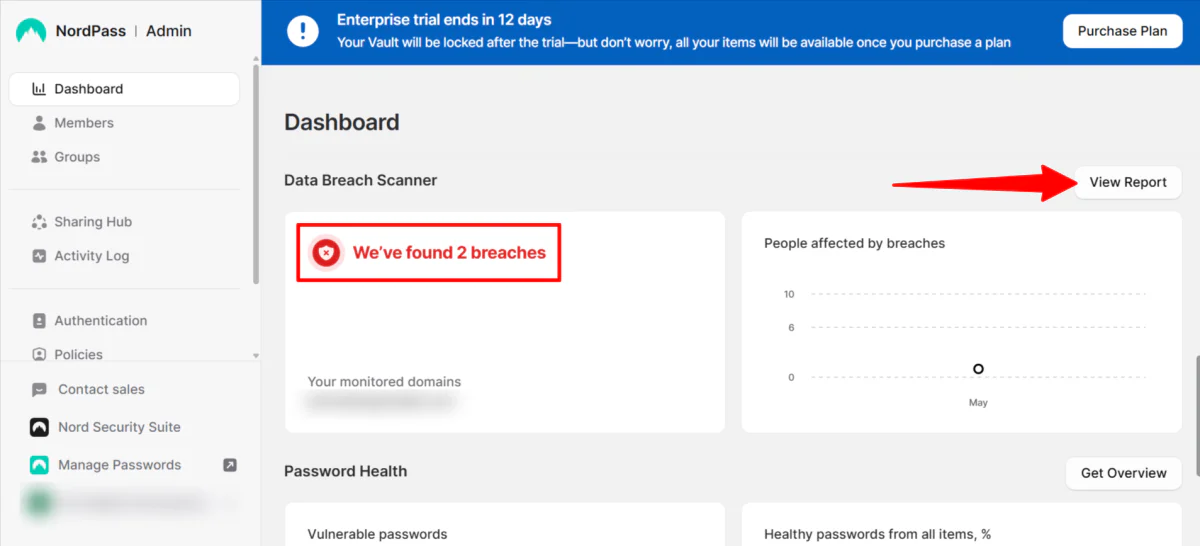
On the main dashboard, NordPass flags active security threats. I noticed two breaches on my domain and selected View Report.
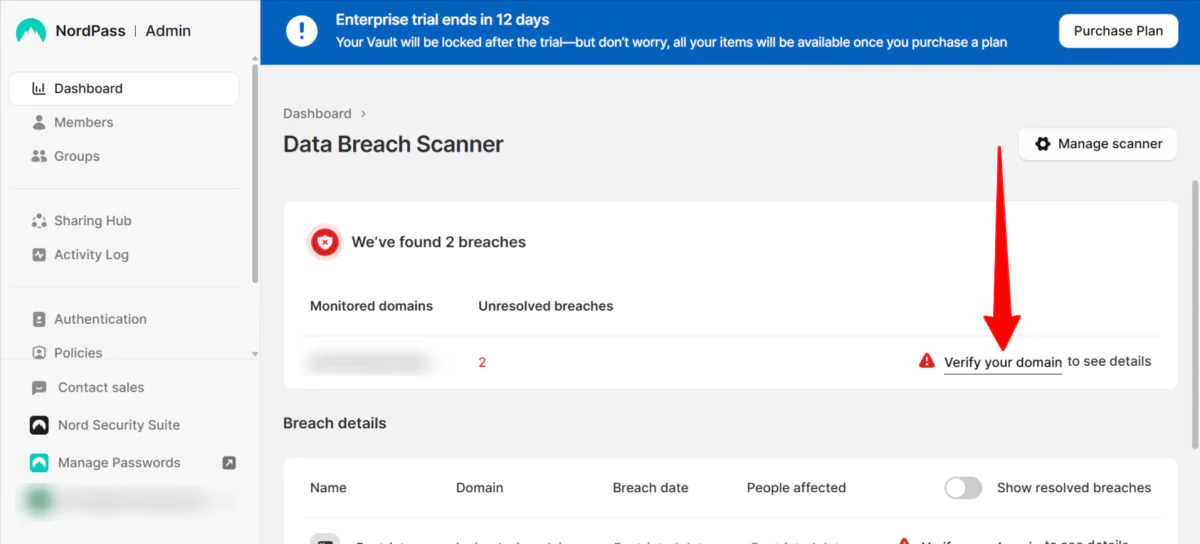
Before revealing the compromised data, NordPass requires domain verification via a quick DNS text record update (a process that took me less than two minutes).
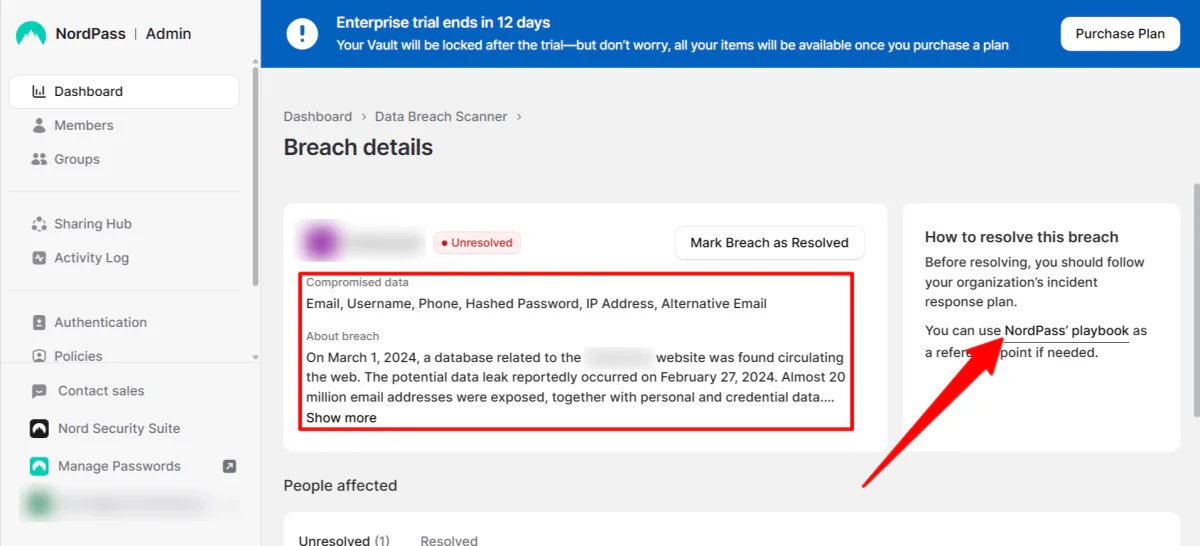
Once verified, the Data Breach Scanner provides a detailed breakdown:
- The domain affected
- The date of the breach
- Actionable recommendations to fix the vulnerability.
Step 10: View the Activity Log
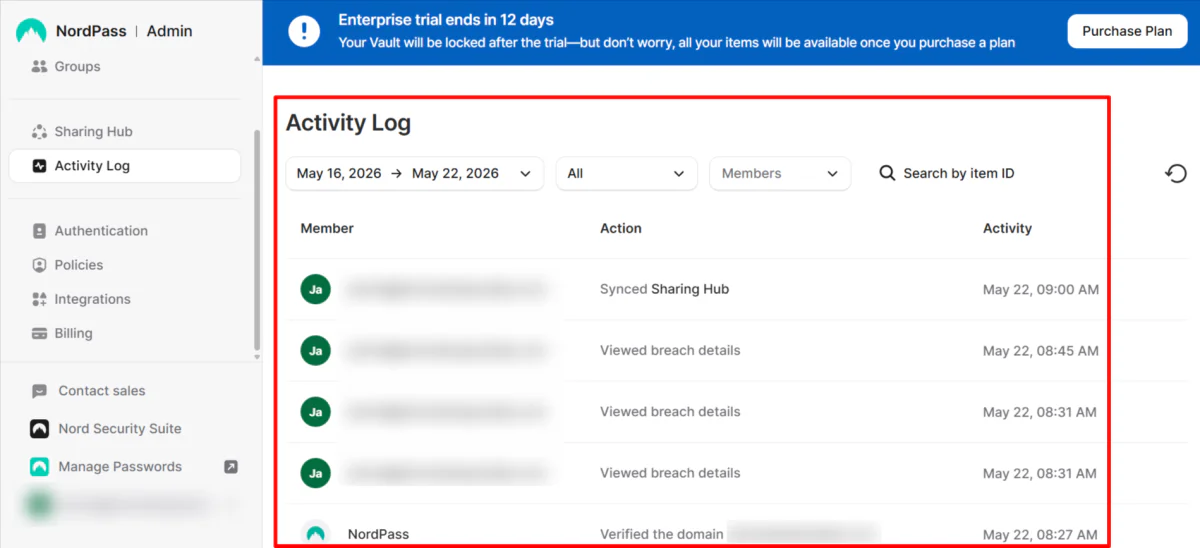
Pair this with the Activity Hub (which tracks sharing and login activity in real-time), and you have a comprehensive audit log to spot unusual behavior before it escalates into a full-scale breach.
Step 11: Save & Share Credentials
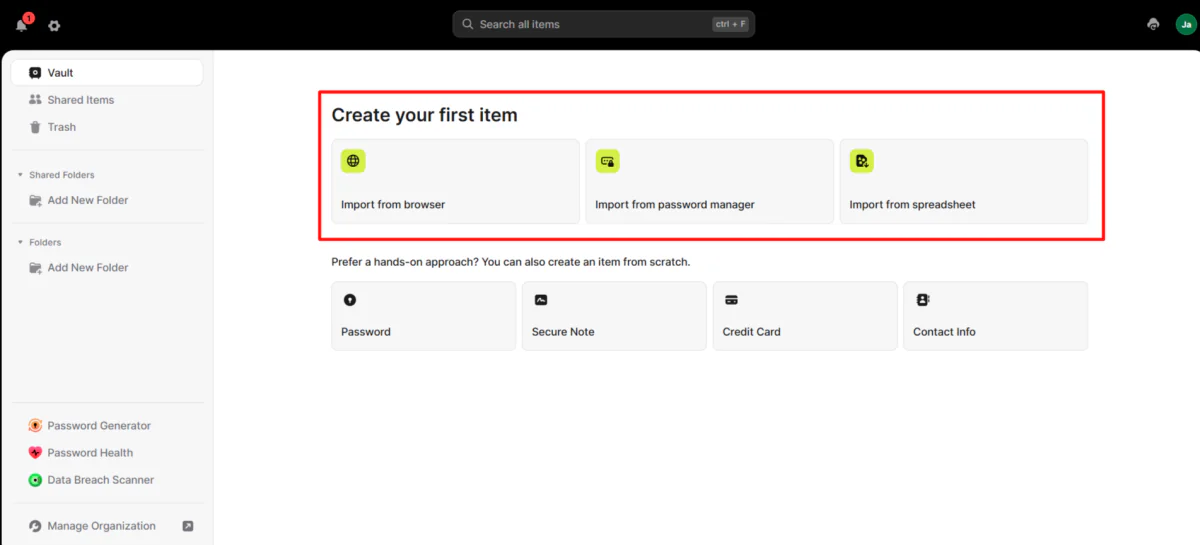
Up until now, we’ve looked at the Admin Panel. To start saving and sharing credentials, you need to pivot to the Web Vault and install the NordPass Browser Extension.
While NordPass offers manual creation forms for passwords and credit cards, I’d recommend using their “hands-off” automation:
- For the Initial Migration: Use the bulk Import tool to pull existing credentials from your browser cache or a CSV spreadsheet.
- For Daily Workflow: Let the browser extension do the heavy lifting. The moment you type a new credential into a website, NordPass will trigger an Autosave prompt. Click accept, and the item is securely encrypted into your vault without you ever typing a single line manually into the app.
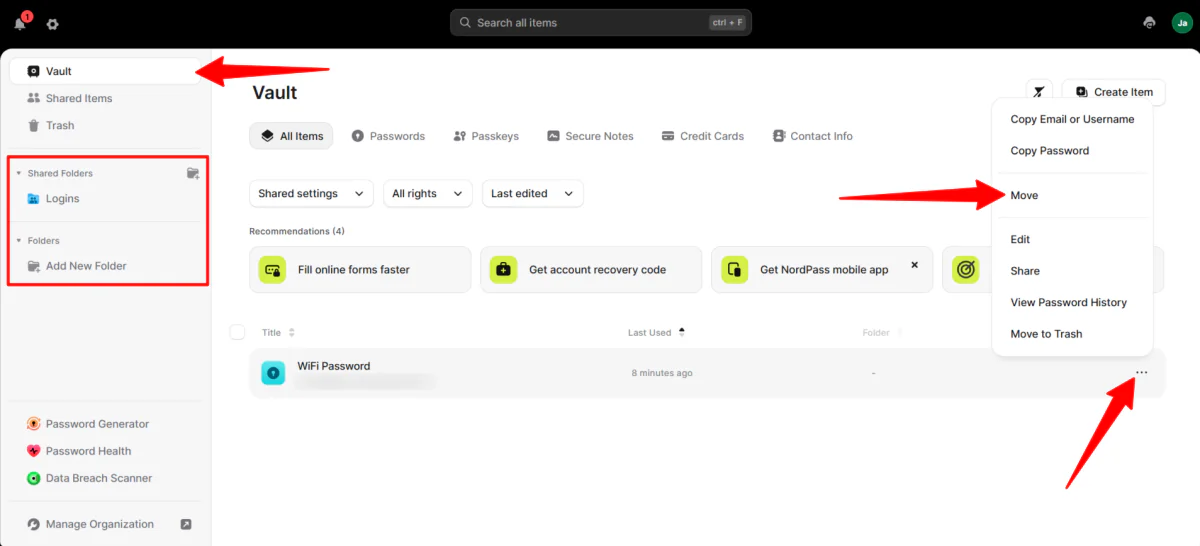
Once your sensitive information has been created/imported, drop it into the appropriate shared folders so the right team members can securely access what they need without passwords being passed around manually.
Getting NordPass up and running takes less than 10 minutes, but the long-term value is worth it. By setting up clear company-wide policies before onboarding your team, you eliminate the weakest link in your security chain: human error.
As AI tools and automated workflows become more common in day-to-day work, having a centralized password manager feels less like an option and more like a necessity. NordPass simplifies password management enough that your team can focus on their work without constantly worrying about security practices in the background.