Verdict
OpenAI Codex is a fast and capable AI coding tool that handles multiple tasks in parallel, builds full features from prompts, and produces fantastic results with solid testing support. It’s powerful for development workflows, but still requires human review and careful oversight for more complicated work.
Pros and Cons
- Runs multiple coding tasks at the same time without slowing down
- Included in ChatGPT Pro with generous usage for heavy development work
- Uses isolated containers to keep your code separated from sensitive systems
- Works well on mobile for queueing tasks, reviewing changes, and merging code
- Strong automated testing support with fewer mistakes and more reliable output
- Cleaner, less distracting experience focused on code quality
- Can build full features from prompts and handle bugs, refactors, and migrations
- Produces solid results quickly for specific coding tasks
- Available on every plan, including the free one for a limited time
- May ignore detailed multi-step instructions in some cases
- Fast, but still needs review for full apps
- Some users may need the Pro plan to get full value
- Still needs human oversight to avoid bugs and security issues
What is OpenAI Codex?
What Codex Unlocks for Notion

Codex is an AI coding agent developed by OpenAI, built specifically for software engineering tasks (things like writing code, fixing bugs, and answering questions about your codebase).
But calling it just a “coding assistant” is kind of like calling a Swiss Army knife a nail file. It’s technically true, but you’re missing the point.
What Codex Does
What makes Codex different from other tools is the agentic part. Each task runs in a separate cloud-based sandbox environment, with your repository (essentially a project folder) already set up.
Codex can do things like write full features, propose pull requests for review, and handle multiple tasks simultaneously. That means you can delegate multiple tasks at once and review them.
Accessibility
Codex is not stuck in one place. It’s available through ChatGPT’s web app, the Codex CLI, a desktop app for Windows and macOS, and IDE integrations.
So whether you’re using VS Code, prefer working in the terminal, or just want to use it through ChatGPT, it meets you where you are.
Handles End-to-End Engineering Tasks
Since launching in May 2025, agent-driven development has evolved rapidly. AI models can now manage complex workflows from start to finish with minimal oversight.
At the same time, developers are using multiple AI agents across different projects, assigning them tasks, and working on several things at once. As these systems become more capable, developers are increasingly relying on them for larger assignments.
Model Evolution
Introducing GPT-5.5

The model power has also evolved. GPT-5.2 (released in December 2025) brought better handling of long-running tasks by reducing unnecessary context buildup. It also improved how large code changes (like refactoring and migrations) are handled, and compatibility on Windows systems.
The new GPT-5.5 (released in April 2026) builds on this by further improving reasoning across extended workflows (like agentic workflows and knowledge work), making it more reliable when working through complex development tasks over longer periods.
What stands out the most to me about GPT-5.5 is its “computer use,” where it works like an actual assistant inside a machine. It helps create documents, spreadsheets, and presentations. It even navigates and interacts with interfaces by seeing what’s on screen, by clicking, typing, and moving between tools with a much higher level of control and precision.
Integrations
When Codex became available, OpenAI also rolled out a Slack integration, a Codex SDK for embedding the agent into custom workflows, and admin tools with monitoring and analytics dashboards. It’s clearly being positioned for scaling engineering teams, not just individual developers playing around on weekends.
Ultimately, Codex isn’t a code snippet generator anymore. It’s closer to an engineer who works fast, doesn’t take breaks, and is getting smarter every few months.
Who is Codex Best For?
Codex is best for developers and technical teams who want an AI that can do more than suggest code:
- Backend and full-stack developers who need help building features, fixing bugs, and improving code.
- Engineers working on complex logic or messy codebases where Codex’s step-by-step reasoning is helpful.
- People who prefer delegating tasks to Codex and reviewing the results instead of doing every step manually.
- Teams using pull requests and issue tracking while working on multiple tasks at the same time.
- Startup founders, solo developers, and agencies building MVPs, prototyping, or shipping quickly with small teams.
- Companies that want to build features faster, fix bugs, run tests, clean up large codebases, and handle small repetitive tasks more easily.
Codex Key Features
OpenAI Codex comes with plenty of features.
Core Features
- Looks through your project, makes changes, runs tests, and uses commands when needed
- Builds features (e.g., login forms, search bars, etc.), updates code, and handles project changes from simple instructions
- Identifies problems and fixes them across different files without needing constant direction
- Helps explain and understand codebases you haven’t worked with before
Cloud & Parallel Processing
- Task agents work on multiple tasks simultaneously
- Each task runs in its own separate workspace (cloud sandbox) with your project files already loaded
- Recurring tasks run in the background while you work on other things
- Multiple agents help finish bigger projects more quickly
- Each workspace includes enough power and resources for most Node, Python, or Go coding projects
Security & Control
- Code runs in an environment separated from your real systems
- Internet connections can be toggled on or off when needed
- Built-in protections (sandboxes) and network limits
- Everything runs in a controlled testing space first, instead of a real production environment
Pull Request & Git Features
- Turns its work into PRs (pull requests) you can review and merge
- Adds updates to PRs without messing up the history
- Tag @codex on issues or PRs to propose changes on GitHub
- Handles multiple branches (worktrees), so work stays organized
Advanced Features
- Generates multiple options so you can pick the best one based on quality or performance
- Speak your ideas, and Codex turns them into code
- Automatically handles routines like monitoring alerts and CI/CD
- Helps with prototyping, writing docs, and understanding code in line with team standards
Accessibility
- ChatGPT web app (chatgpt.com/codex across all plans)
- Codex CLI (open-source, runs locally in terminal on macOS, Windows, and Linux)
- Desktop app (Windows and macOS)
- IDE integrations (VS Code, Cursor, Windsurf, and JetBrains extensions)
How to Use Codex
Here’s how I used OpenAI Codex to build a landing page and marketing plan for a product in 20 minutes:
- Download the Codex App
- Explore the Interface
- Create a New Project Folder
- Add a Prompt
- Set Permission & Turn on Plan Mode
- Set Up the Agent Sandbox
- Choose the Landing Page Positioning
- Implement the Plan
- View the Landing Page
- Automatically Implement Improvements
Step 1: Download the Codex App

I started by going to chatgpt.com/codex and selecting the Download button.
Step 2: Explore the Interface
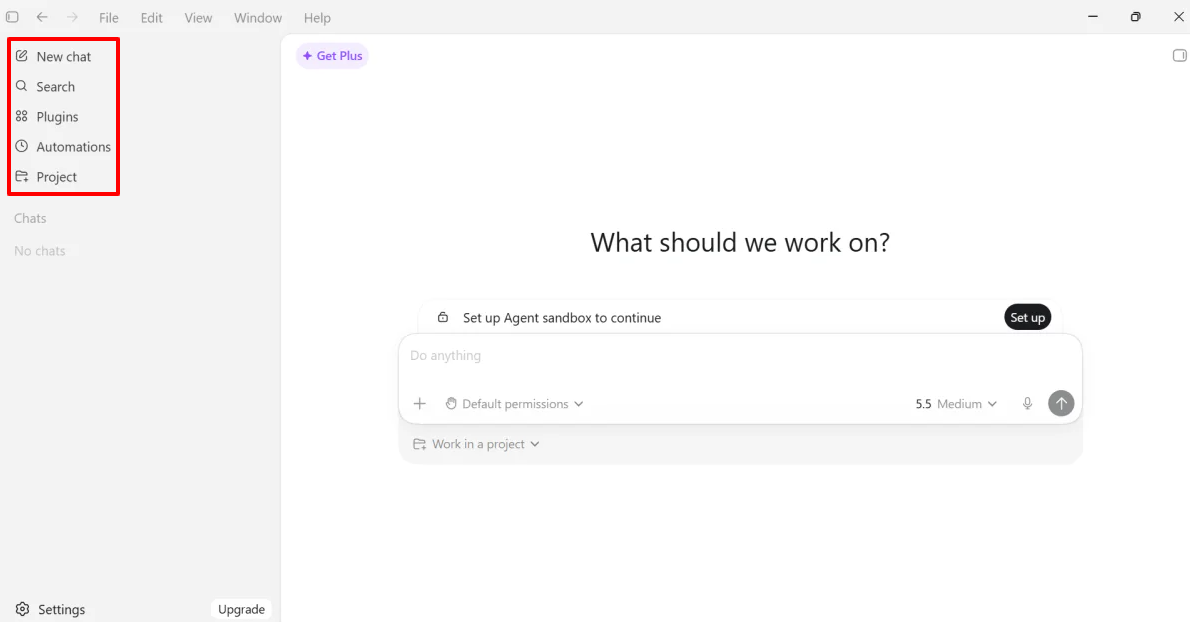
After downloading and signing in with ChatGPT, I officially had access to the Codex app. The interface looked similar to ChatGPT.
On the top left were some options:
- New chat: Start a new chat with Codex
- Search: Find old chats
- Plugins: Connect apps
- Automations: Set up tasks
- Projects: Groups files into project folders
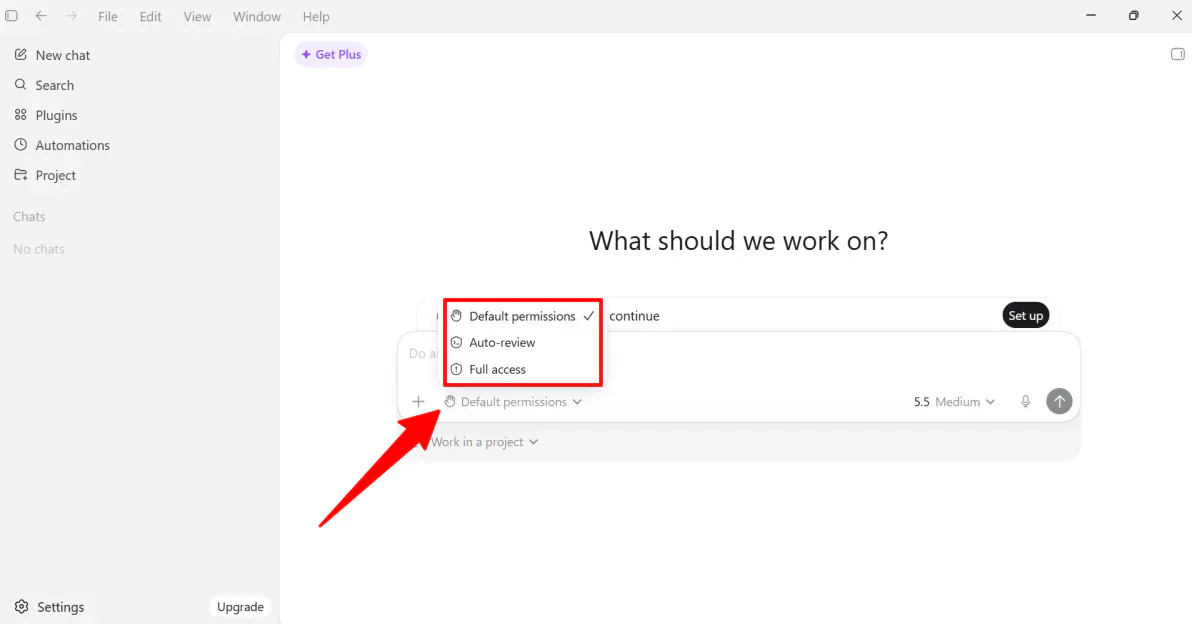
Within the chatbox itself were different permissions:
- Default: Automatically runs commands in a sandbox (less access to your computer)
- Auto-review: Codex will ask you to review more sensitive tasks
- Full access: Codex has full access to your computer (elevated risk)
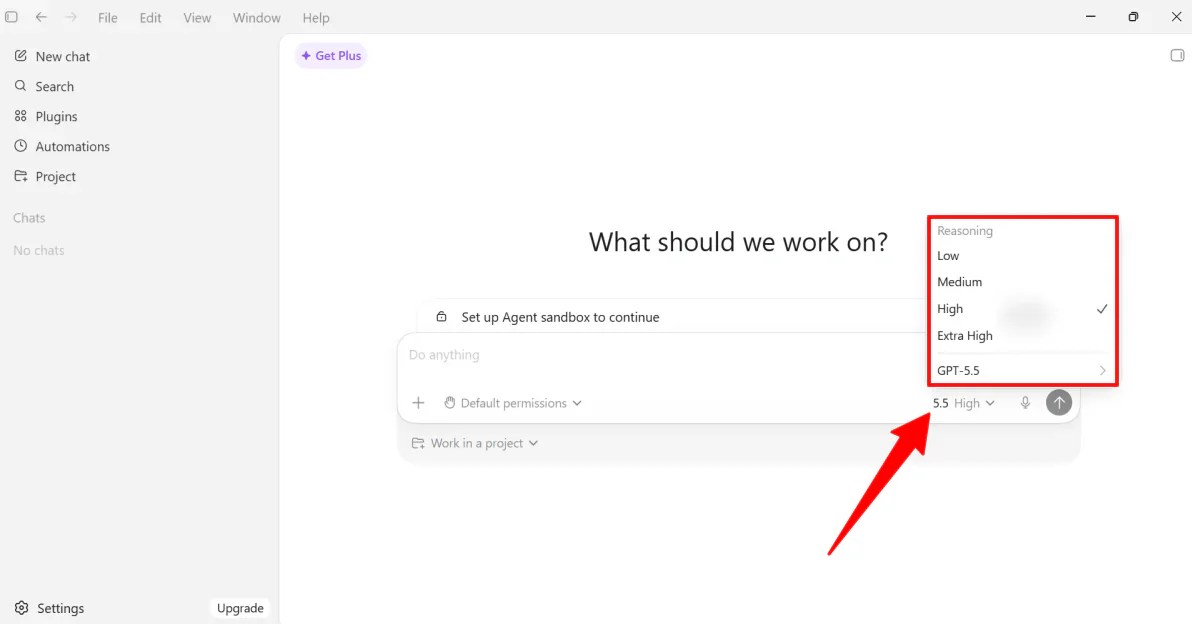
On the right, I could choose the reasoning (Low, Medium, High, or Extra High) and the model (from GPT-5.2 to GPT-5.5).
I kept my reasoning on Medium paired with the latest GPT-5.5 model. On a free-tier account, Medium is the sweet spot; It gives the agent enough power to build a landing page with multiple files without quickly burning through your hourly usage limits.
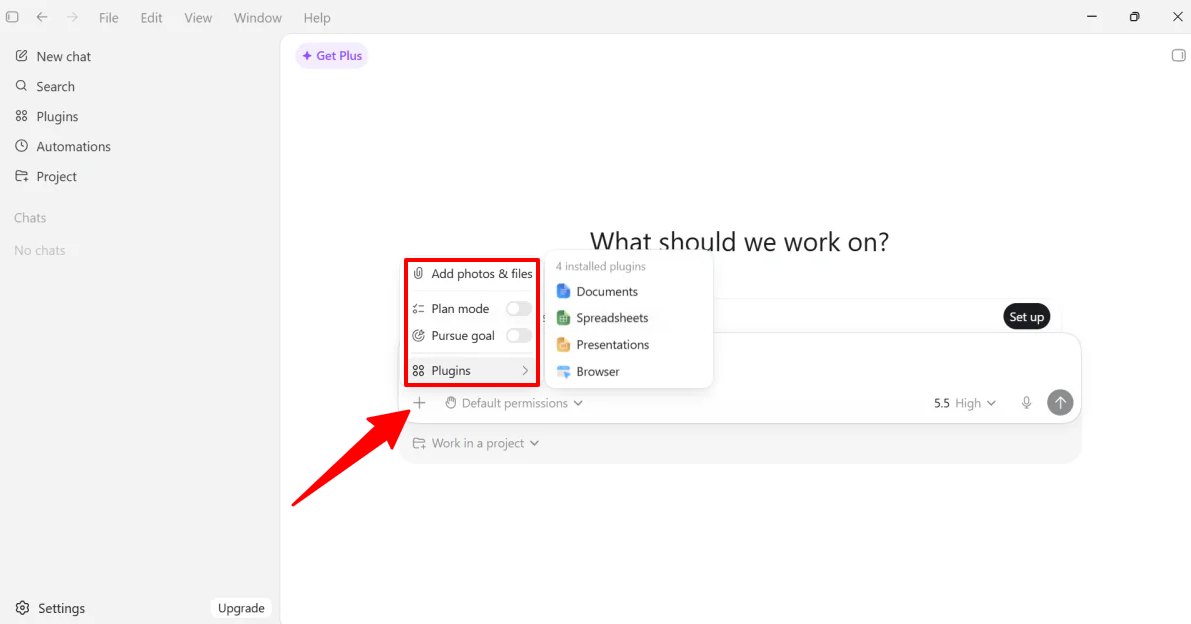
On the left is a plus button with the following options:
- Add photos and files
- Plan mode
- Pursue goal
- Plugins you want to work with
Step 3: Create a New Project Folder
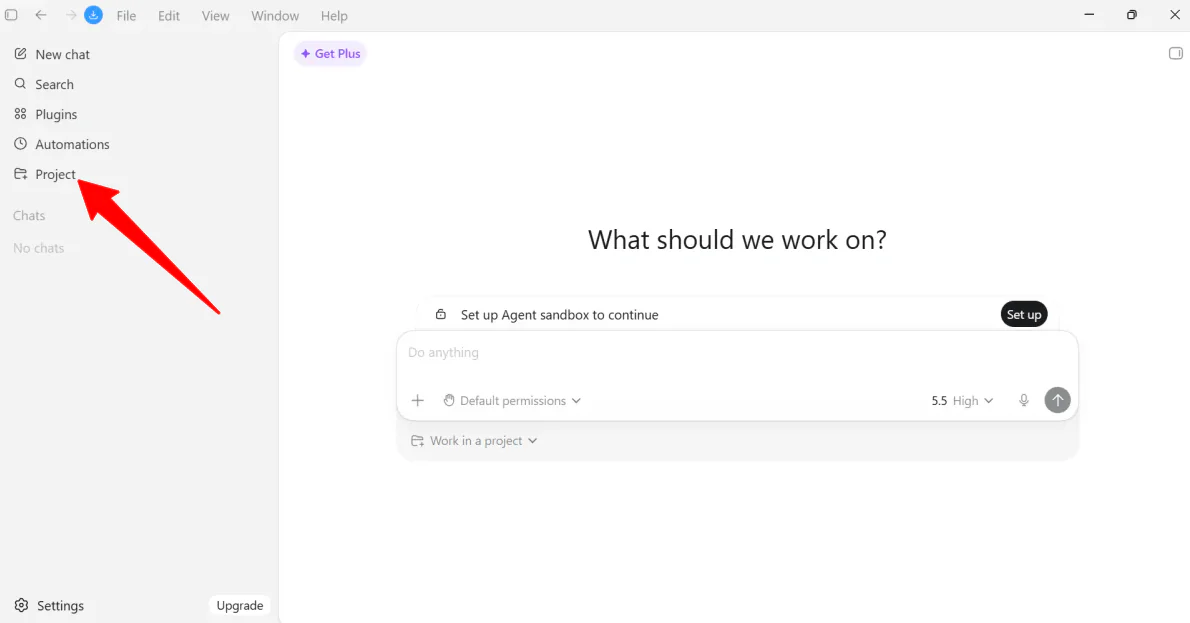
Before sending my prompt, I created a Project folder so Codex would know where to save the files. I did this by selecting Project and naming it “Landing Page Test.”
Step 4: Add a Prompt
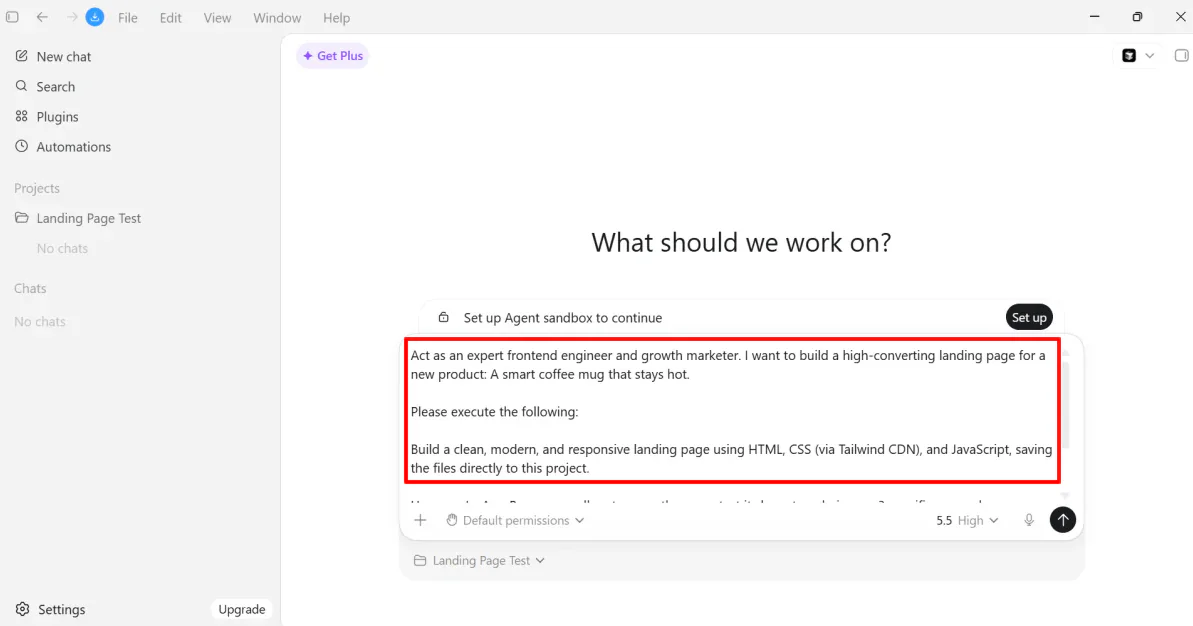
In the empty prompt field, I gave Codex the following prompt:
“Act as an expert frontend engineer and growth marketer. I want to build a high-converting landing page for a new product: A smart coffee mug that stays hot.
Please execute the following:
- Build a clean, modern, and responsive landing page using HTML, CSS (via Tailwind CDN), and JavaScript, saving the files directly to this project.
- Use your In-App Browser sandbox to open the page, test its layout, and give me 3 specific areas where we can improve the user experience.
- Generate a comprehensive launch marketing copy outline that I can use for my promotional assets.”
Step 5: Set Permission & Turn on Plan Mode
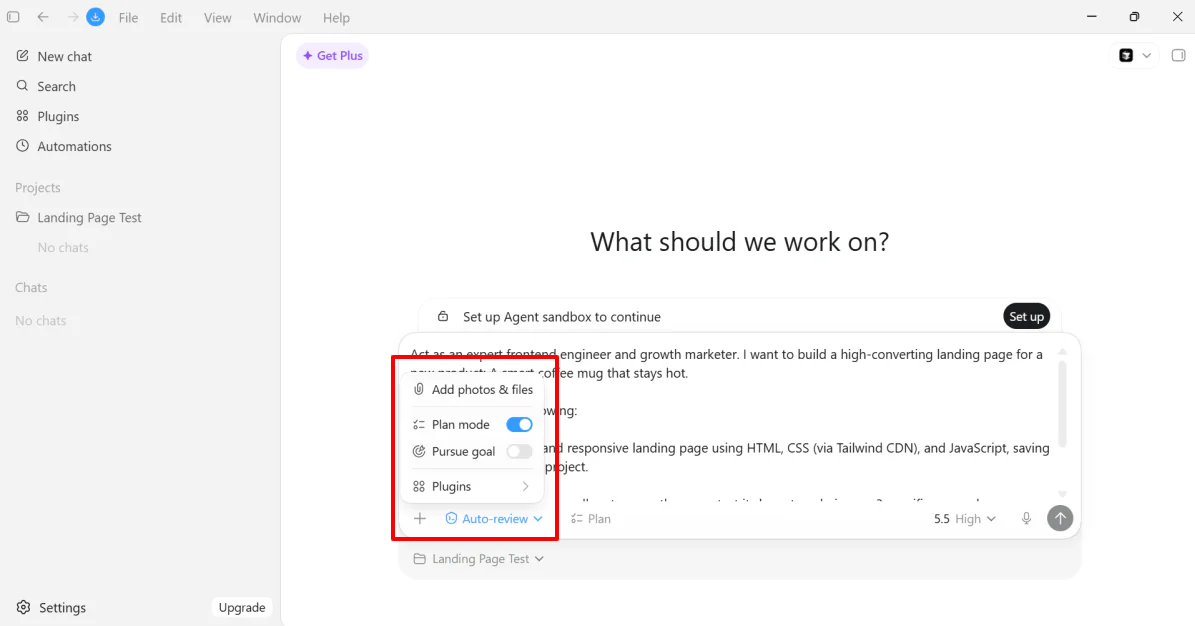
I also set my permissions to Auto-review and turned on Plan mode.
Out of the different permission settings, Auto review provides the best balance between safety and a smooth experience. It lets Codex work more independently in your project by writing code and testing changes without constantly asking for approval, while still blocking more sensitive actions.
Turning on Plan Mode is important because it forces Codex to stop, sketch out a blueprint, and get your approval before it makes any changes or builds anything.
Step 6: Set Up the Agent Sandbox
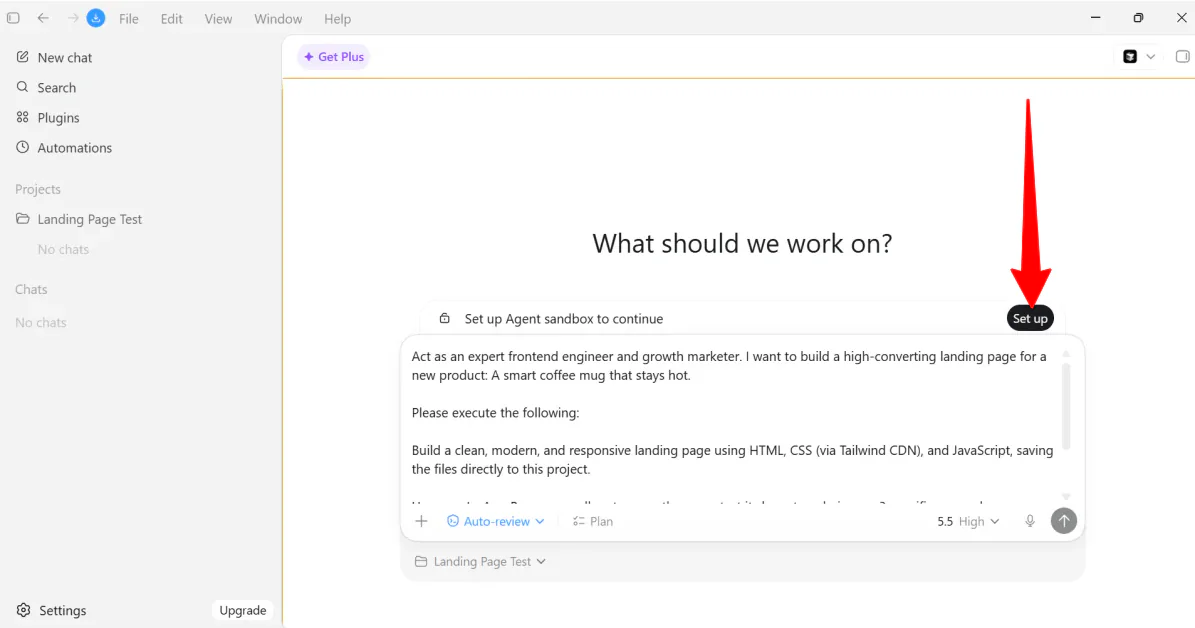
I had everything in place with one caveat: I still had to set up an Agent sandbox.
Because Codex can create files and run code directly on your computer, OpenAI first sets up a protected area on your system (the Agent sandbox) to keep those actions contained and secure before the AI starts working.
Setting up the Agent sandbox only took a few seconds. Once it was in place, I sent my prompt.
Step 7: Choose the Landing Page Positioning
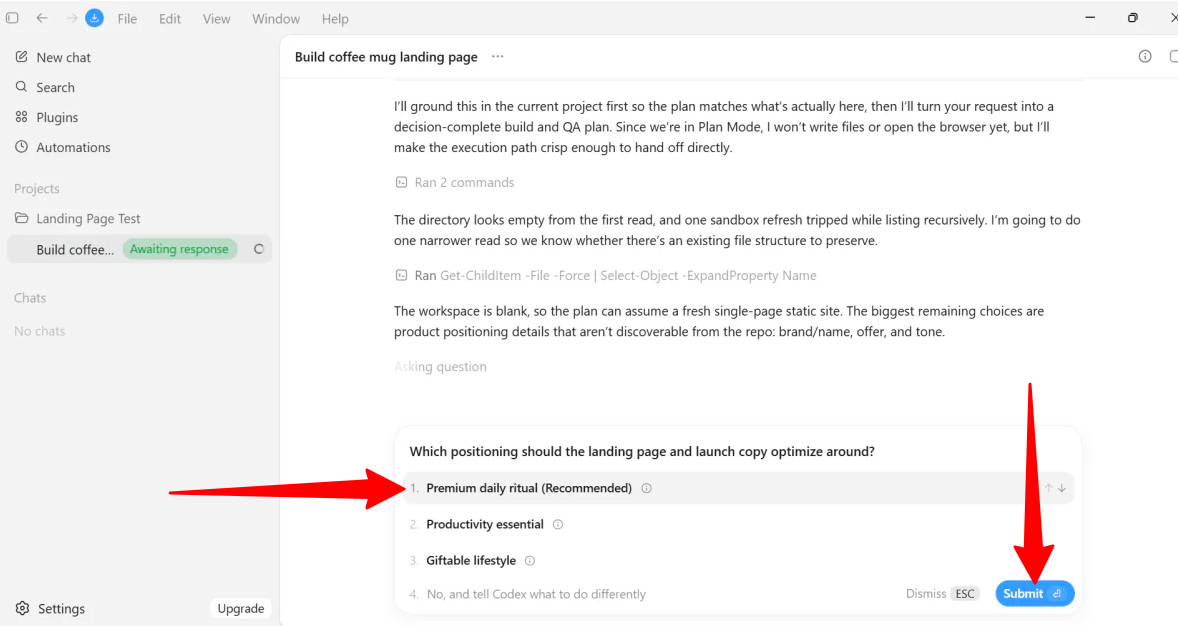
After sending Codex my prompt, it immediately got to work. Instead of just showing code, Codex paused and gave a simple choice in the chat, asking how the product should be positioned before starting the build:
- Premium daily ritual (recommended): Higher perceived value, warm modern design, strongest fit for a smart heated mug.
- Productivity essential: Frames the mug as a desk/workflow upgrade for professionals.
- Giftable lifestyle: Optimizes for gifting, occasions, and broader emotional appeal.
This helps make sure it doesn’t start building the wrong thing or use up your usage on something you didn’t want.
I went with the first option (Premium daily ritual) because, since it’s a smart coffee mug, positioning it as a “daily ritual” gives Codex a fantastic creative angle for both the landing page copy and the marketing plan. It will design a sleek aesthetic and write copy to elevate the user’s morning routine.
Step 8: Implement the Plan
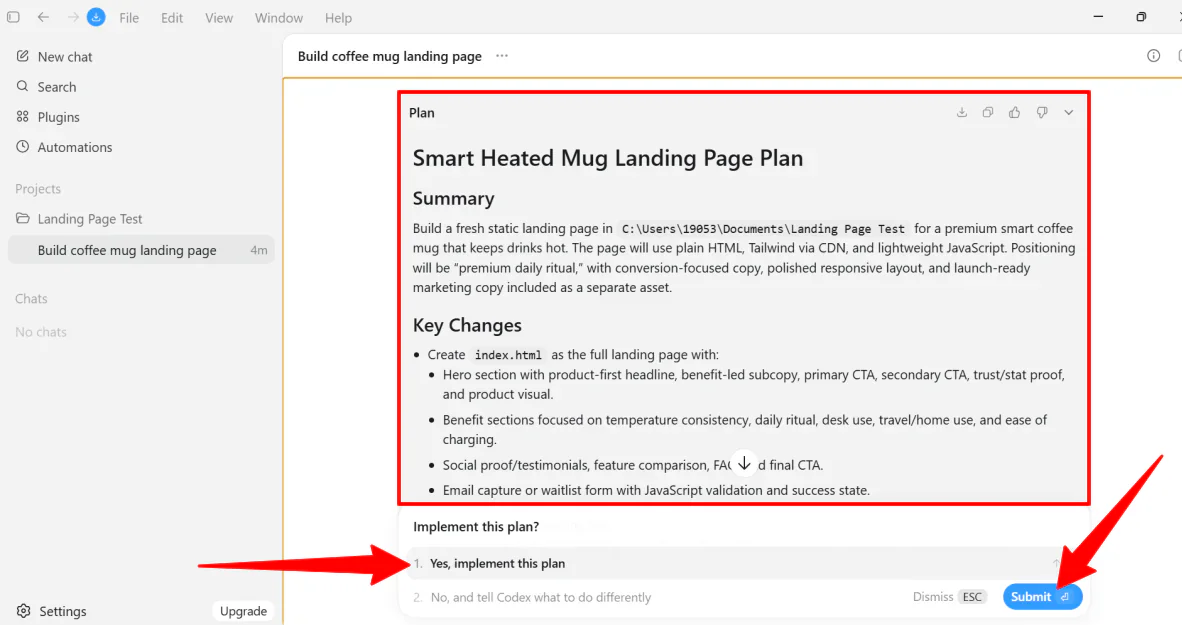
From there, Codex outlined the plan with a summary, key changes, user experience, quality assurance, test plan, and assumptions. Everything looked good, so I hit Submit.
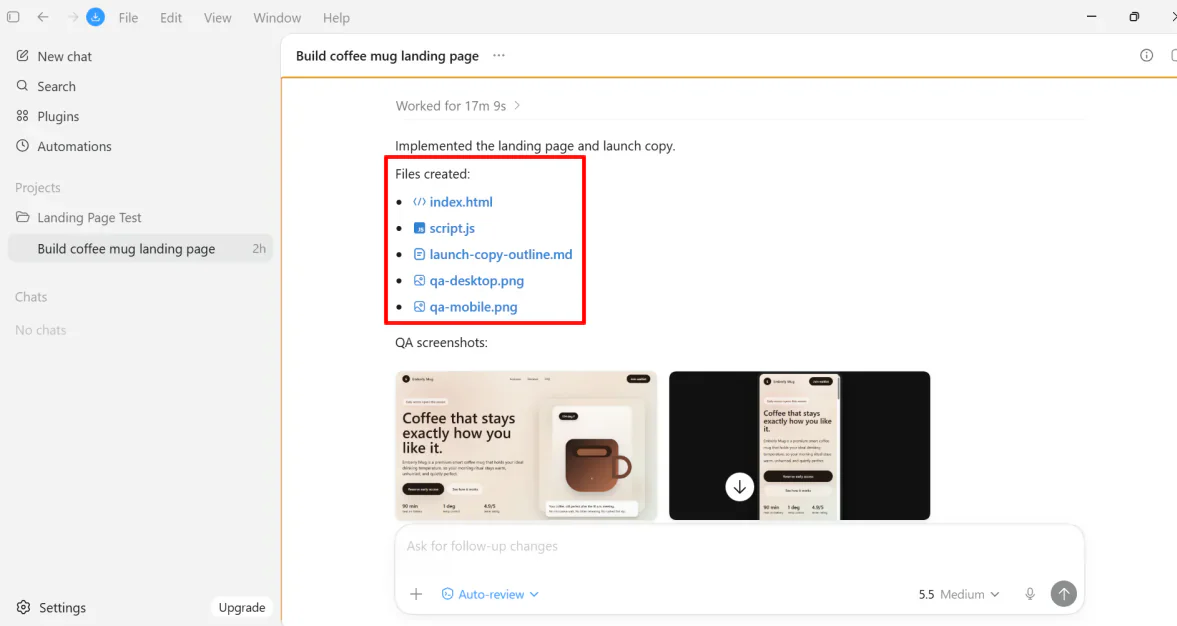
About 15 minutes later, Codex created all the files I requested:
- Launch copy outline
- Desktop preview image
- Mobile preview image
- Web page (HTML)
- Interactive logic (JavaScript)
Step 9: View the Landing Page
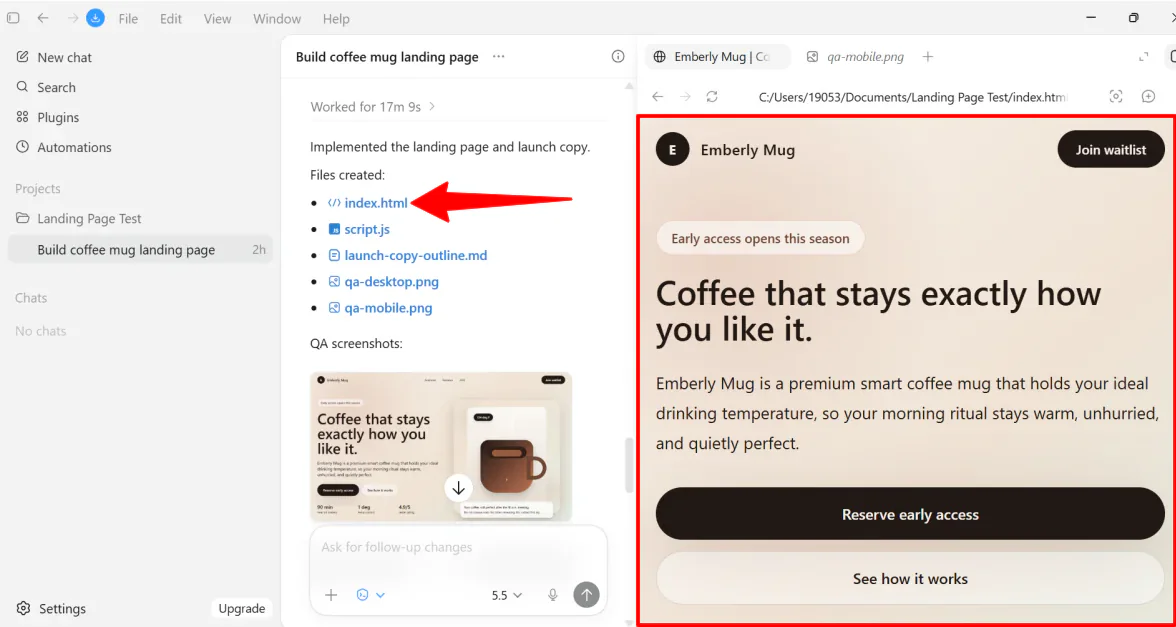
Once the files were generated, I accessed the split-screen by clicking on the HTML file to open the In-App Browser Sandbox. The agent pulled up the live, fully rendered HTML landing page right next to the chat window.
Step 10: Automatically Implement Improvements
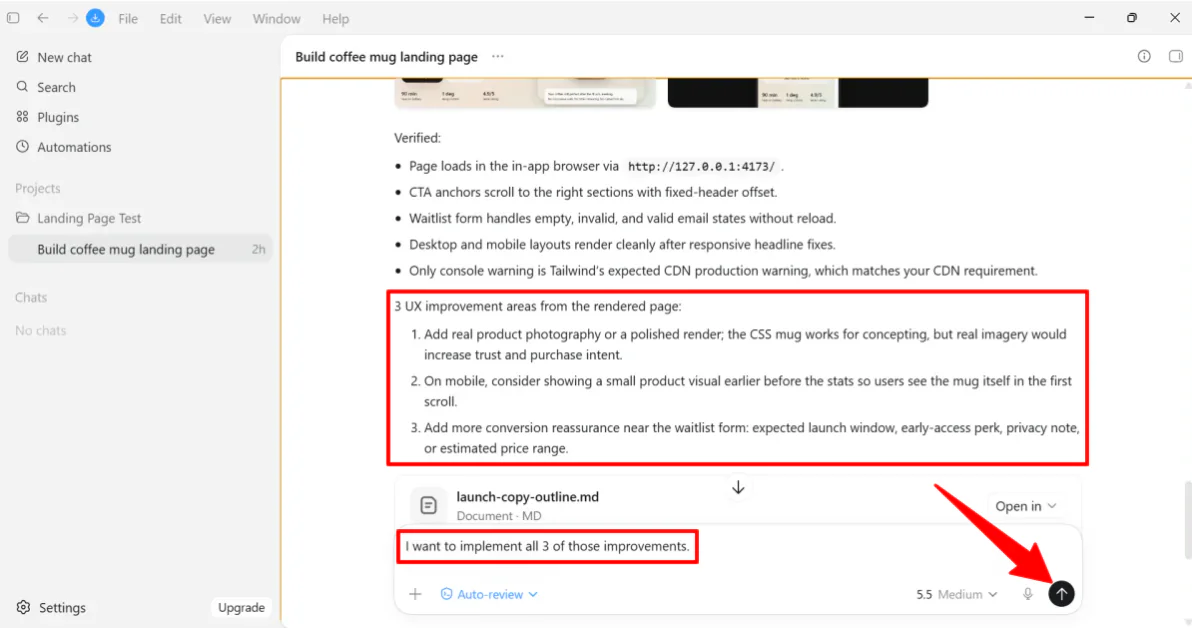
True to the prompt, Codex didn’t just build it; it audited its own work.
It flagged 3 specific UX areas for improvement:
- Add real product photography or a polished render; the CSS mug works for concepting, but real imagery would increase trust and purchase intent.
- On mobile, consider showing a small product visual earlier before the stats so users see the mug itself in the first scroll.
- Add more conversion reassurance near the waitlist form: expected launch window, early-access perk, privacy note, or estimated price range.
I instructed Codex to implement all three of its own suggestions at once. Just over five minutes later, Codex implemented all three improvements.
Getting the opportunity to build a full project this quickly changed my perspective on how far AI technology has come. Going from an empty folder to a finished landing page and marketing plan took less than half an hour.
While there’s a small initial learning curve, once everything is set up, Codex feels much more advanced than a normal AI chatbot. Instead of only suggesting bits of code, it helped build and organize an entire project with me, no coding experience required.