Verdict
RoboForm stands out for its form-filling, easy setup, and affordable pricing. It’s never experienced a data breach or hack in nearly 30 years of operation, and you can store unlimited passwords for free on a single device. While it covers most everyday needs well, it feels less modern and offers fewer advanced features than some competing tools.
Pros and Cons
- Automatic logins fill both your username and password for quick sign-ins
- Browser extension conveniently saves, manages, and autofills passwords while you browse
- Excellent form-filling for addresses, payment details, and online forms
- Affordable pricing with a generous free plan
- Simple and easy-to-use interface
- Works on all major devices and browsers
- Strong security with encryption, passkeys, and two-factor authentication
- Optional offline storage without cloud syncing
- Monitors email addresses for data breaches
- Easy to import passwords from other password managers and browsers
- Useful business features for managing employee access
- Emergency access option for trusted contacts
- Dated interface that can feel less modern than competitors
- The free plan is limited to one device with restricted access
- Lower default security settings compared to some rivals
- Manual password entry requires more steps than expected
- Occasional need for manual syncing on older devices
- Fewer advanced tools for more technical users
- Passwordless login requires extra setup
- The default password length may be unnecessarily long for some sites
What is RoboForm?
Say Hello to RoboForm Password Manager

RoboForm is a password manager that helps securely save, create, and autofill passwords and personal information across devices.
It’s actually been around since 1999, way before most people were even thinking about password managers. It was built by a company called Siber Systems.
At the time, the whole idea was pretty revolutionary. The Internet was still the Wild West, and nobody was really talking about password security the way we do now.
Fast forward 25 years, and RoboForm has grown into one of the most established names in the password management space. That kind of longevity in the tech world means something.
What RoboForm Does
At its core, RoboForm is two things: An encrypted password vault and a form filler.
You store all your login credentials in one secure place, and then the browser extension does the heavy lifting every time you need to log in somewhere.
When you visit a site you’ve saved, RoboForm recognizes it and autofills your username and password automatically.
How the Browser Extension Works
The browser extension is pretty straightforward.
When you log into a website for the first time, RoboForm pops up and asks if you want to save those credentials. You say yes, it saves them, and that’s pretty much it.
The next time you visit that website, it fills everything in for you. It also captures form data (like your name, address, and payment information) so online shopping becomes much less of a chore.
Platform Support
RoboForm also has strong platform support. It runs on Windows, Mac, iOS, and Android, with browser extensions for Chrome, Firefox, and Edge.
So whether you’re switching between your laptop and your phone or using a work computer during the day, everything stays in sync.
The Zero-Knowledge Encryption Model
The zero-knowledge encryption model sounds complicated, but the idea is simple. Your passwords are encrypted on your device before they ever leave it. That means RoboForm can’t see anything.
The encryption uses AES-256, which is the same standard used by banks and government agencies. Even if someone somehow broke into RoboForm’s servers, all they’d find is scrambled data that’s completely useless without your master password. You’re the only one who holds the key.
And if that’s still not enough to put your mind at ease, RoboForm has been around since the 1990s and has never been hacked. That kind of long-term track record is hard to ignore when you’re trusting a company with your most sensitive information.
It’s not a perfect system (no tool is), but the combination of decades of experience, affordability, and reliable encryption standards makes RoboForm hard to dismiss.
Who is RoboForm Best For?
RoboForm is best for certain types of individuals and small businesses:
- Budget-conscious users who want affordable pricing with one of the best free plans available.
- Users who need form-filling that saves time on logins, checkouts, and online forms.
- Multi-device users who want easy access to passwords across every device and browser.
- Users who want strong security features that are easy to set up and use.
- Small businesses that want simple password management and secure sharing for teams.
- Users who value import flexibility like quick and easy migration from browsers, CSV files, and other password managers.
RoboForm Key Features
RoboForm has a range of password management, security, form-filling, and sharing features:
Password Management
- Unlimited password storage on all plans, including the free tier
- Create, store, and autofill passwords across any device
- One-click login to websites, apps, and Windows applications across any browser or device
- Password sync across all devices with cloud backup
- Password audit monitors weak, duplicate, and compromised passwords
Security Features
- AES-256 encryption for all stored data
- Two-Factor Authentication (2FA) supporting passkeys, trusted devices, hardware security keys, email, SMS, and authenticator apps
- Passwordless Unlock using passkeys verified by face, fingerprint, or device PIN
- Data Breach Monitoring scans up to 5 email addresses on the dark web and alerts you to exposures
- Local-only mode option to store data exclusively on your device without cloud sync
Form Filling & Productivity
- Save and fill any online form (not just passwords)
- Works on multiple platforms: Windows, Mac, iOS, Android, and all browsers, including incognito/private mode
- Import from anywhere, including major browsers, other password managers, or CSV
Sharing & Emergency Access
- Share passwords and folders securely with individuals with customizable access levels
- Emergency Access for trusted contacts to access your data in case of death or incapacitation
- Built-in TOTP authenticator for 2FA codes
Additional Features
- Passkey management
- Safenotes for secure text storage
- Bookmark management
- Password change history
- 24/7 support (priority support with Premium/Family plans)
Free Tools
- Random Password Generator to create strong and unique passwords
- Random Passphrase Generator to create strong and unique passphrases
- Password Evaluator to see how secure your password is
- Email Exposer to see if your email was leaked in a data breach
How to Use RoboForm
How to use RoboForm Password Manager

Here’s how easy it is to set up and start using RoboForm:
- Create a RoboForm Account
- Create a Master Password
- Pin RoboForm to Your Browser
- Save Login Credentials
- Log In with a Click
- Manually Add Login Credentials
- Import Credentials from Password Managers
Step 1: Create a RoboForm Account
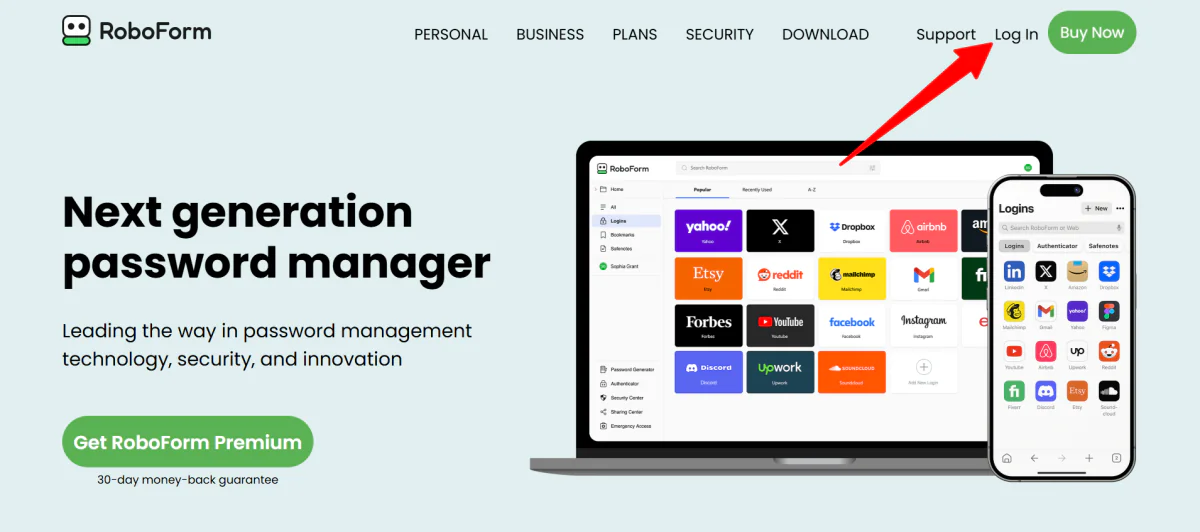
Go to roboform.com and create an account. Head straight to your browser’s extension store and install the RoboForm extension.
Step 2: Create a Master Password
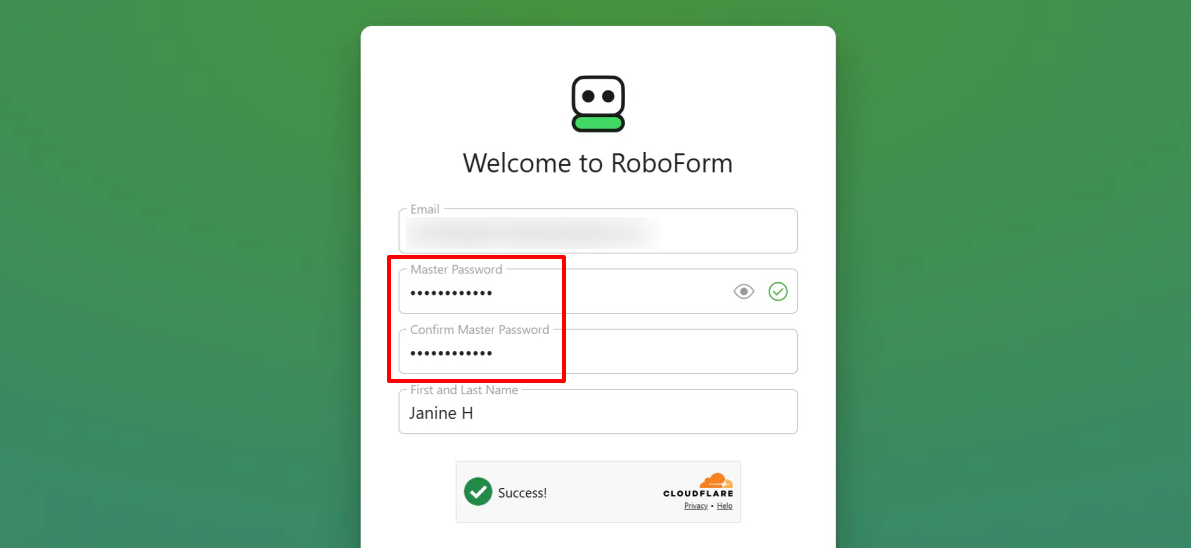
Once installed, RoboForm will prompt you to create a Master Password. This is the single key used to encrypt and unlock your vault.
RoboForm doesn’t give you any suggestions for this password, just that it needs to be 12 characters with 4 letters or symbols.
I came up with a string of random letters and numbers in varying cases. Otherwise, feel free to use RoboForm’s Random Password Generator to generate a password.
RoboForm operates on a “zero-knowledge” model. They do not store your Master Password, meaning it cannot be recovered if you forget it. Write it down and store it in a secure physical location.
Step 3: Pin RoboForm to Your Browser
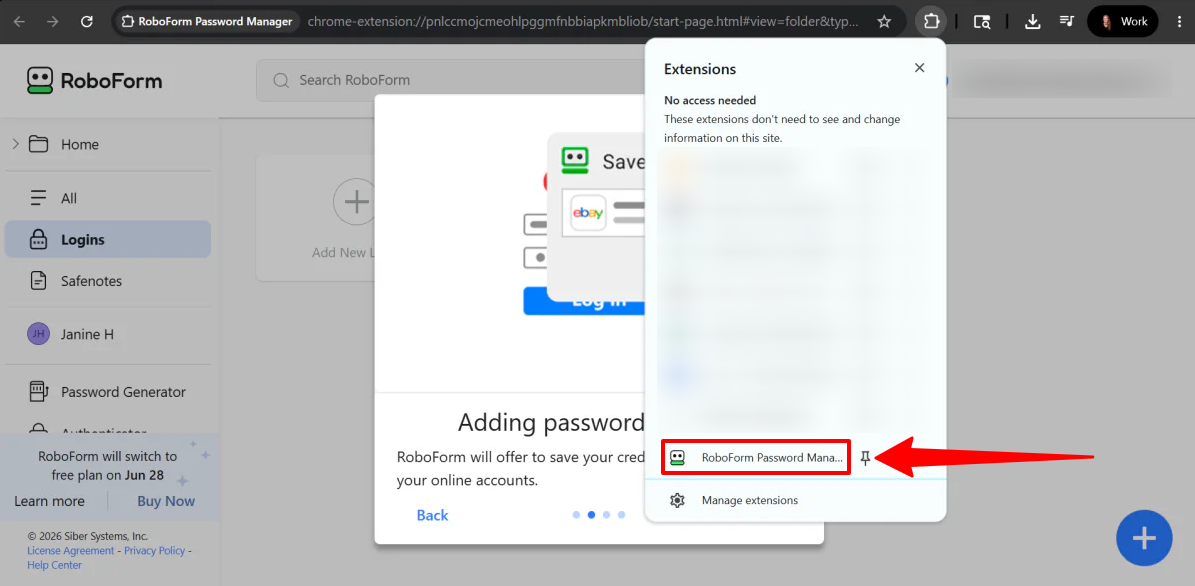
For quick access, pin the extension to your browser toolbar. Click the puzzle piece icon (extensions menu) in the top-right corner of your browser, find RoboForm, and click the pin icon.
Step 4: Save Login Credentials
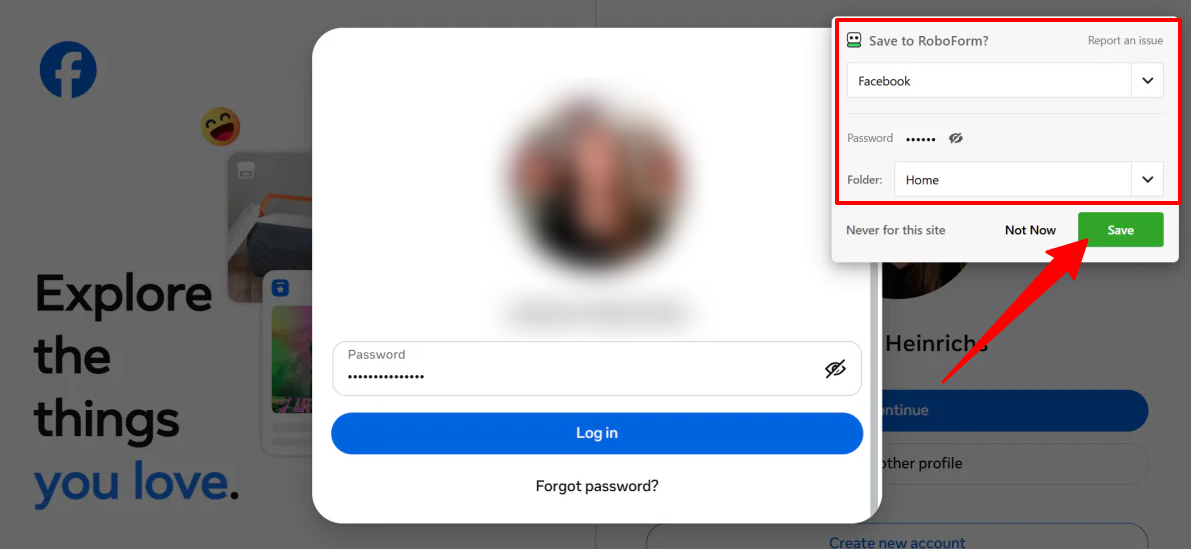
The easiest way to build your vault is as you go.
Navigate to any website and log in normally. RoboForm will automatically detect the login and display a pop-up asking if you want to save the data.
You can name the entry and organize it into a specific folder right from the pop-up.
Step 5: Log In with a Click
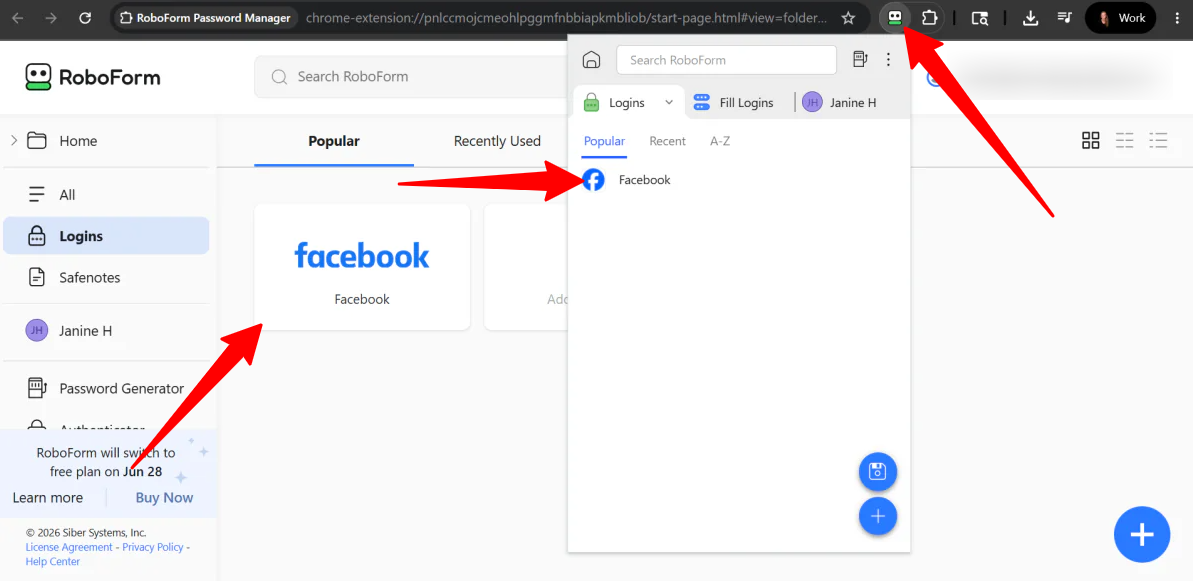
Once a password is saved, logging in from RoboForm is effortless.
You can either:
- Click the RoboForm extension icon in your toolbar, select the website, and let it auto-fill and log you in.
- Click the icon that appears in RoboForm’s Logins page.
Step 6: Manually Add Login Credentials
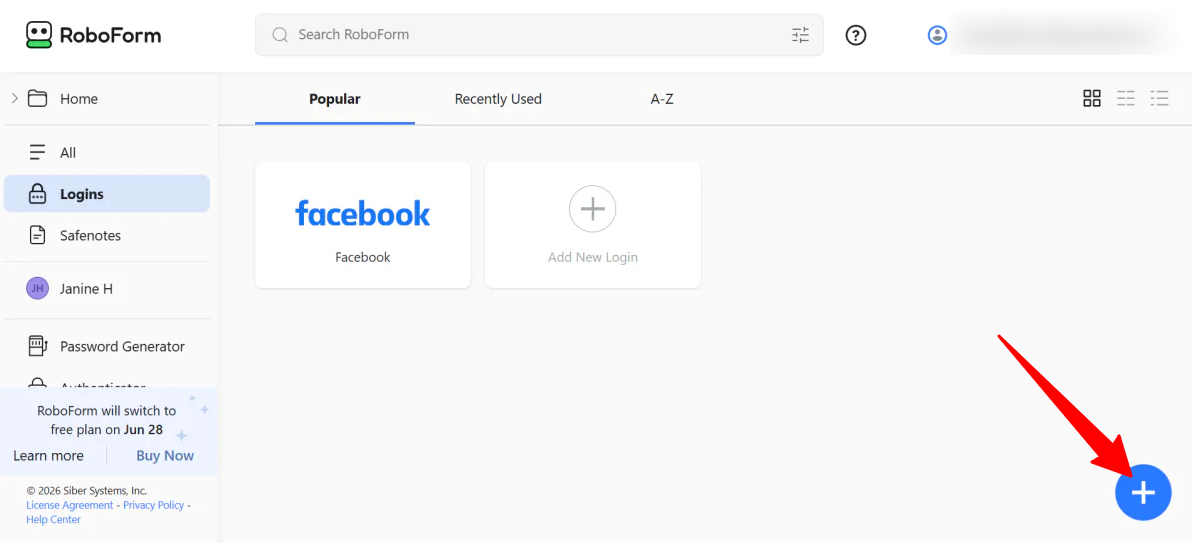
If you want to manually add logins, open the RoboForm extension or desktop app and click the blue “+” icon.
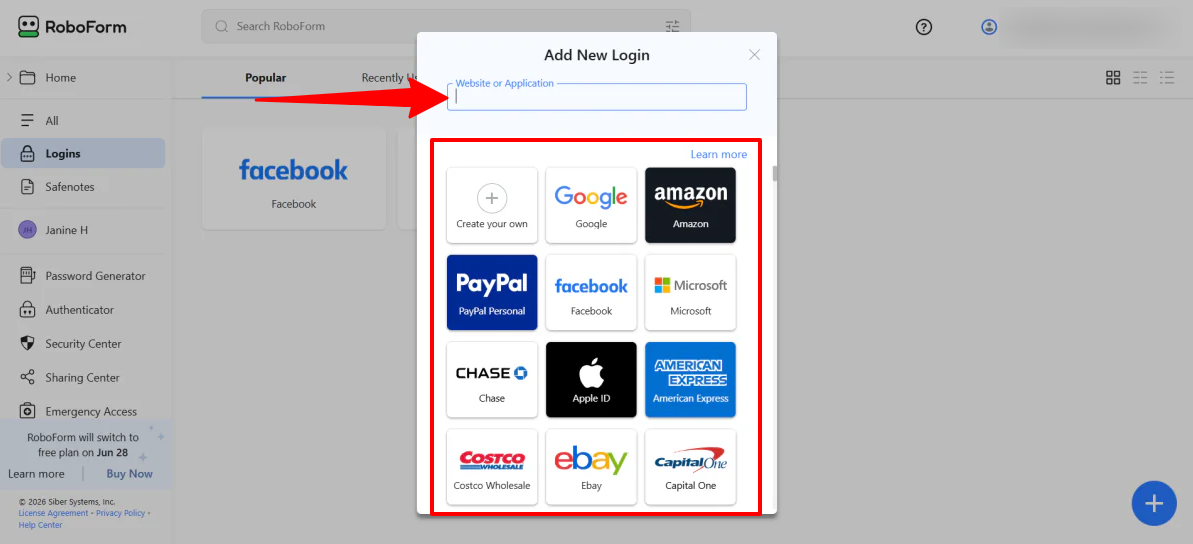
You can search for popular websites or enter a custom URL, then fill in your username and password.
Step 7: Import Credentials from Password Managers
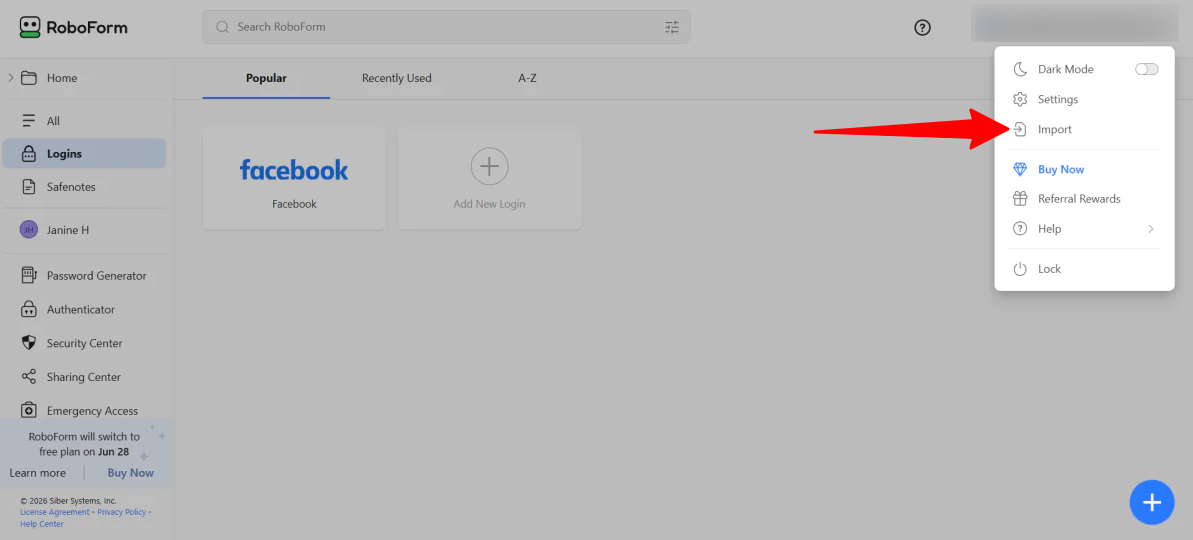
If you are migrating from Chrome, Safari, or another password manager, the fastest way to import your passwords is to bulk-import your data.
Click your profile icon in the top right of the RoboForm interface and select Import
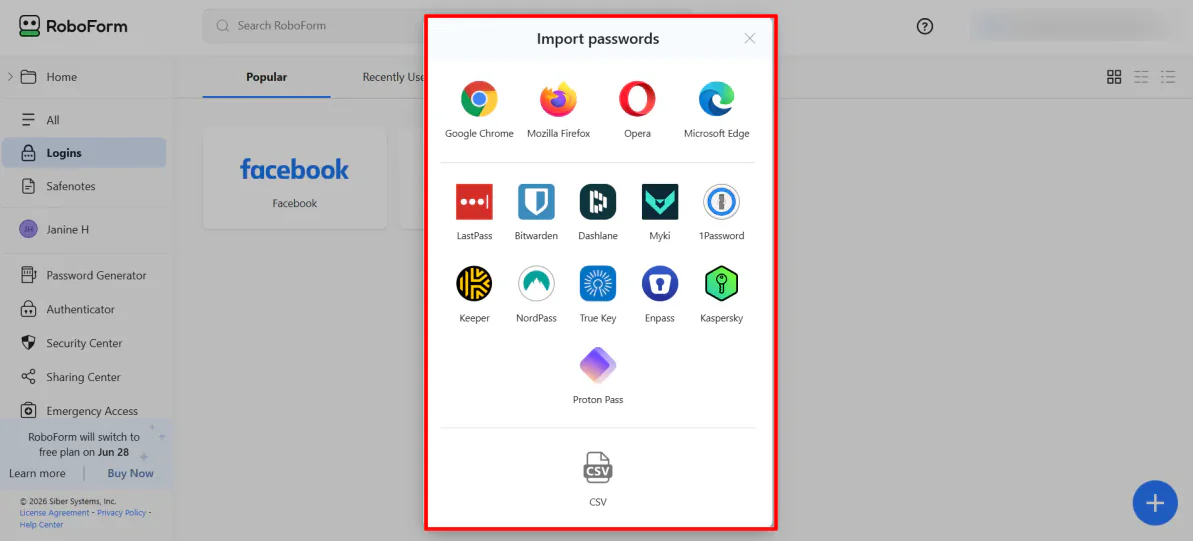
Choose your previous browser or password manager, or upload a CSV file.
And that’s how easy it is to start using RoboForm! By setting up your Master Password, pinning the extension, and letting the tool auto-save your credentials as you browse, you eliminate the daily headache of remembering logins.
Compared to the other password managers I’ve tried, RoboForm keeps things delightfully straightforward. It’s an efficient, affordable tool that prioritizes security and ease of use above all else.